Set up a clock-in kiosk
Turn a shared tablet into a Rotaleave clock-in kiosk — create sites with geofences, enrol devices with a code, and set staff PINs.
Updated 13 October 2026
A kiosk is any tablet mounted by the door where staff tap their name and enter a PIN to clock in and out. Setup is admin-only and takes three steps: sites, devices, PINs. (Clock-in comes with your subscription. If the Sites and Kiosk devices links are missing from Settings, or those pages say it isn’t enabled for your organisation, switch it on under Settings → Organisation → Features → Clock-in & timesheets and Save; contact us if the switch won’t stay on.)
1. Create your sites
Settings → Rota & attendance → Sites describes each workplace:
- Site name and Address.
- Geofence coordinates — click Use my location if you’re standing there, or enter latitude/longitude manually, plus a Radius in metres (default 150, minimum 25).
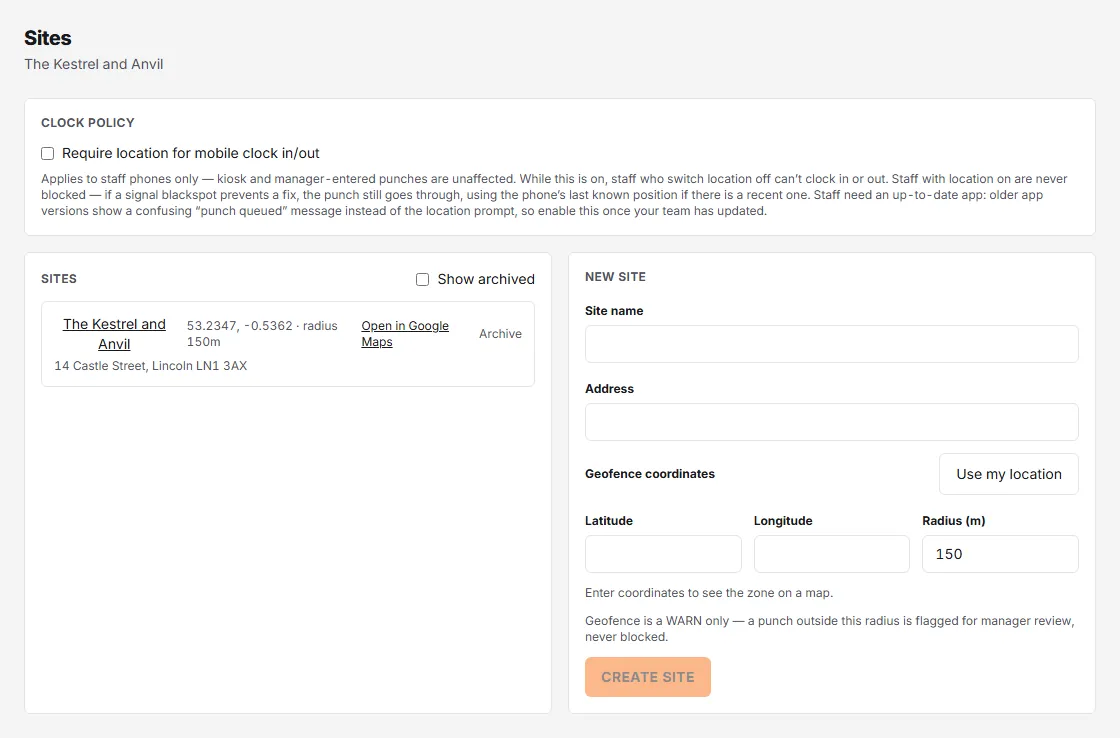
The geofence is advisory: “a punch outside this radius is flagged for manager review, never blocked.” It is checked against the position a phone sends, so it applies to punches from the Rotaleave app; the kiosk sends no position, so a kiosk punch never gets an outside-zone flag. Sites can be archived when a location closes.
2. Enrol the tablet
Settings → Rota & attendance → Kiosk devices:
- Under New device, name the device (“Front door iPad”) and optionally attach it to a site, then Create device.
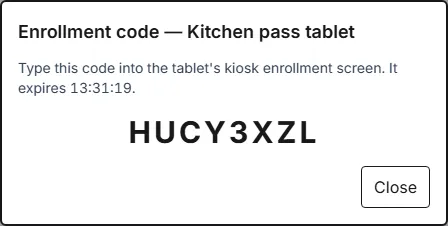
- Click Generate enrollment code. You get a short code with instructions: “Type this code into the tablet’s kiosk enrollment screen.” The code expires after 15 minutes, so have the tablet ready.
- Open the Rotaleave kiosk screen on the tablet and type the code. The device list flips from Not enrolled to Enrolled and starts reporting when it was last seen.
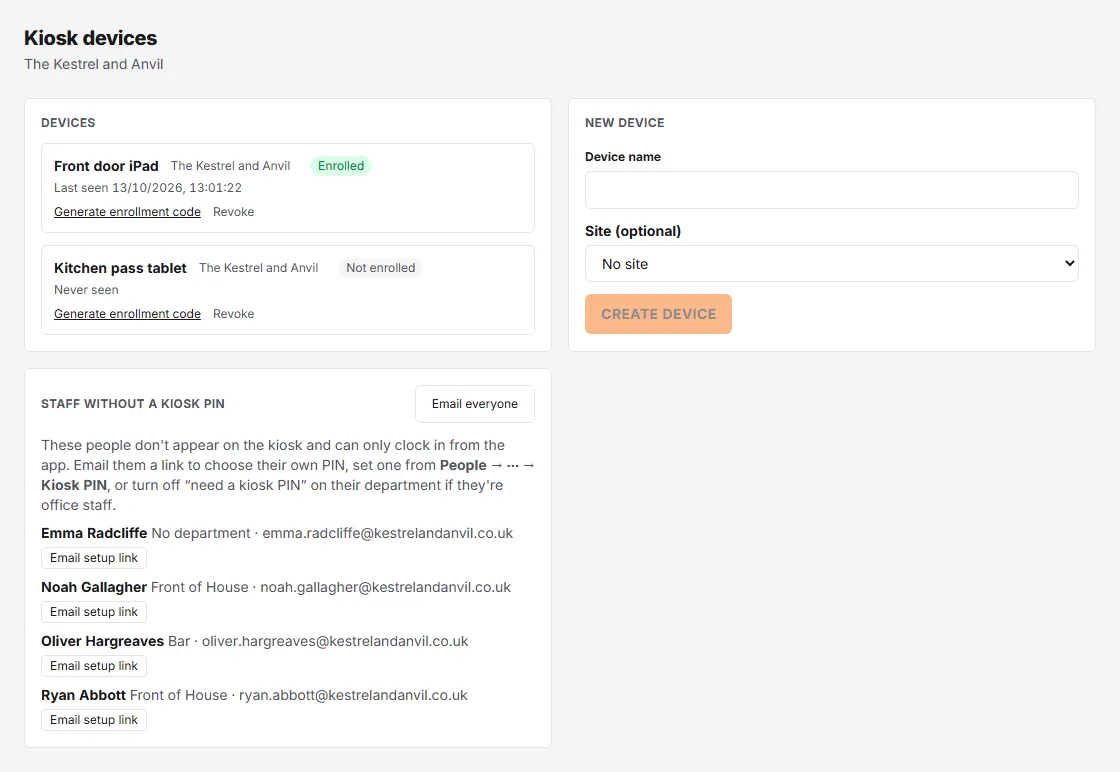
Lost or retired tablet? Revoke it — the device stops working immediately and can’t be re-used.
3. Give people PINs
Each person clocks with a personal 4-digit PIN. New starters choose their own: when clock-in is on, the Set your password step of their invite also asks for a kiosk PIN, so they can use the kiosk on day one.
Salaried staff who don’t clock in at all: open their department on the Departments settings page and untick Staff in this department clock in and out. They won’t see clock-in in the app, won’t appear on the kiosk and don’t need a PIN. For staff who clock in from the app but never use the tablet, leave that ticked and untick Staff in this department need a kiosk PIN instead. Only people with a PIN appear on the kiosk; anyone without one clocks in from the Rotaleave app instead. Staff who still need a PIN are listed under Staff without a kiosk PIN on the Kiosk devices page — press Email setup link next to a name (or Email everyone) to send them a link to choose their own. A person is sent at most one setup email a day.
Staff can set or change their own PIN at any time under Account → Kiosk PIN (web) or Settings → Kiosk PIN (app), typed twice, with no password needed. To set or reset someone’s PIN yourself, open the ⋯ menu on their row in People, choose Kiosk PIN and enter it twice. Clear PIN removes it.
Punches from the kiosk flow straight into weekly timesheets with any scheduling flags attached. Five wrong PINs for the same person in one 15-minute period (the quarter-hours of the clock) and the kiosk stops accepting that person’s PIN until the next period.