Clock in and out
How staff clock in and out of Rotaleave — from the mobile app or a shared kiosk tablet with a personal PIN — and how site zones behave.
Updated 13 October 2026
Clock-in and timesheets come with your Rotaleave subscription. If a page says they “aren’t enabled for your organisation”, they are switched off. An admin can switch them back on under Settings → Organisation → Features → Clock-in & timesheets, then Save (the page itself tells admins to contact Rotaleave; try the switch first). If the switch won’t stay on, Rotaleave support has turned it off for your organisation, so contact us. An organisation that has gone read-only also loses clock-in until it subscribes or is back to 10 people or fewer.
Where you clock
There are two ways to punch in and out:
- The mobile app — clock in and out from your phone. When location is on, the punch carries it so managers can see it happened at the right site.
- A kiosk tablet — a shared device at the door running Rotaleave’s kiosk mode. Tap your name, enter your PIN, and you’re clocked in or out. The kiosk shows whether you are currently in or out next to your name and only offers the other action. If you clocked in on your phone, the kiosk knows within half a minute. See Set up a clock-in kiosk.
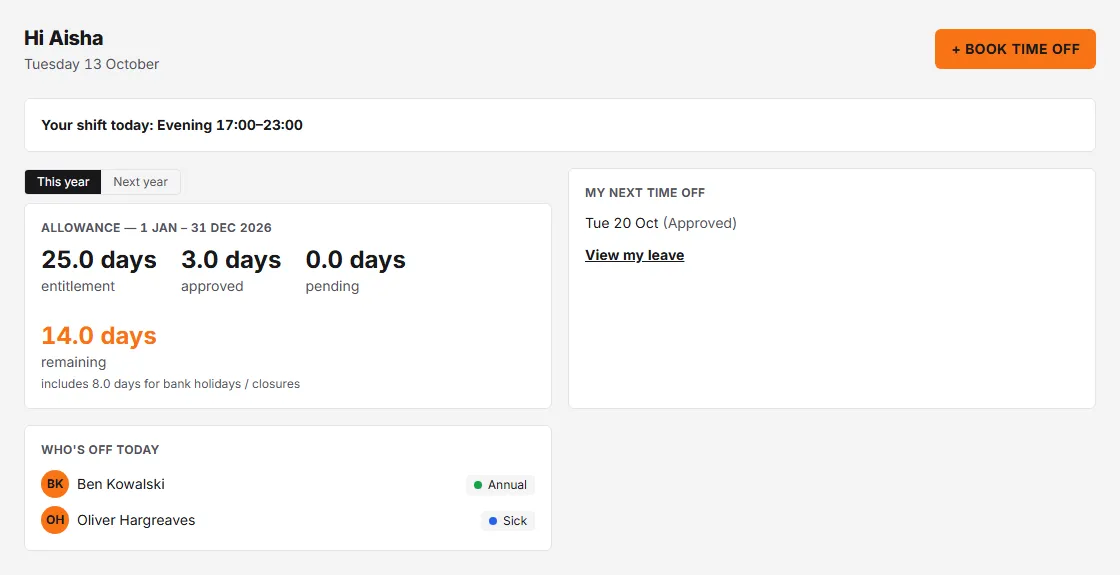
There’s deliberately no clock button in the desktop web app — punches happen where the work happens. When the rota is on, the web’s Today page shows your published shift for the day (“Your shift today”), and the Timesheets page is where the punches end up.
Your kiosk PIN
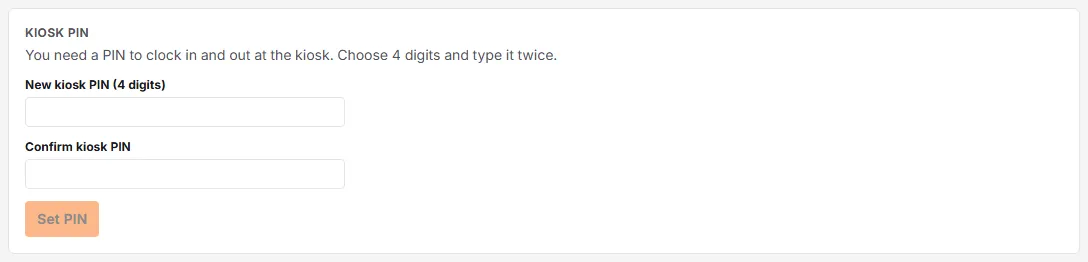
When clock-in is on for your organisation, you choose your own 4-digit PIN when you accept your invite (unless your department doesn’t need one). To set or change it later, open Account → Kiosk PIN on the web (or Settings → Kiosk PIN in the app), type the new PIN twice and press Set PIN. You don’t need your password or your old PIN to do this. Without a PIN the kiosk cannot clock you in or out.
An admin can also set or reset it for you from People → Kiosk PIN, or email you a link to set it yourself from the Kiosk devices page.
Clocking in twice, or out when you are not in
Phone and kiosk both refuse a clock-in when you are already clocked in (“You’re already clocked in since 09:02. Clock out instead.”) and a clock-out when you are not (“You’re not clocked in. Clock in first.”). A clock-in counts as an open shift for 16 hours. After that it is treated as a forgotten clock-out: you are no longer shown as clocked in, your next clock-in is accepted, and the old one appears on your manager’s timesheet as a Missing punch.
Site zones: warn, never block
Admins set up sites with a radius on Settings → Rota & attendance → Sites. A punch made from your phone outside every site’s zone is never blocked; it lands with an Outside site zone flag that your manager can check on a map, with the distance from the nearest site.
From app version 1.2.4, when you clock in or out from your phone outside every site’s zone, the app tells you how far you are from the nearest site and asks whether to continue. Tap Clock in or Clock out to record the punch as normal, flagged for your manager; Cancel records nothing.
Requiring location
On the same Sites page an admin can switch on Require location for mobile clock in/out. While it is on, someone who has location switched off on their phone cannot clock in or out and is asked to turn it on; the server’s message is “Your employer requires location for clocking in and out.” It applies to phones only, not to the kiosk or to times a manager enters. Someone with location on is not blocked if the phone cannot get a position (a signal blackspot): the punch goes through with the last known position if that is under ten minutes old (your manager sees Location was not current when it is more than two minutes old), and with no position at all your manager sees No location.

Entering the time yourself
From app version 1.2.4, if you forgot to clock out and got home: tap Set time on the clock card, pick the time you actually finished (within the last 12 hours, not in the future, and after your previous punch) and confirm. Your timesheet shows it as Time entered by employee; your manager sees on the web timesheet the time you entered it and where you were.
What builds from your punches
Every punch pair becomes a line on your weekly timesheet — reviewed, corrected if needed, and approved by your manager. If you are on the rota for that day, the break on your rota shift is taken off the line (never more than the time you were clocked in), and a line whose worked time comes to more than the rota shift is flagged Over scheduled. You get an email when your weekly timesheet is approved, unless you have switched that off in notification preferences.
If your department is set to not clock in, you won’t see clock-in in the app and won’t appear on the kiosk.