Review and export timesheets
Approve weekly timesheets in Rotaleave — check flagged punches, correct hours, approve one or all, and export the week as CSV.
Updated 13 October 2026
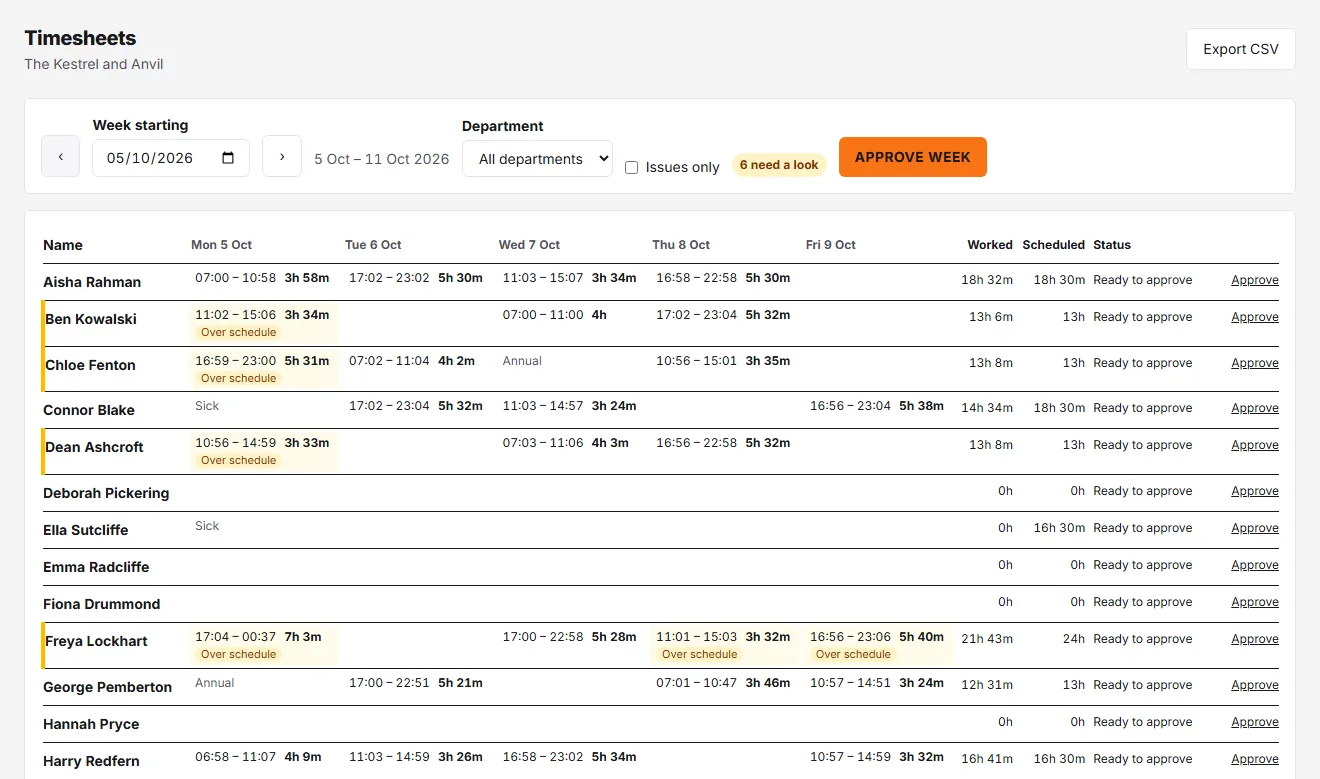
Timesheets (managers and admins) shows one week at a time as a grid: a row per person, a column per day. Use the ‹ › arrows or the Week starting date (any day in the week works — it snaps to the week’s first day). Admins can filter by department. A manager sees themselves and the people they manage (the people whose leave requests they approve), with a department filter when that covers more than one department; a manager who manages nobody sees only their own row. People in a department that is set not to clock in are left off unless they have a line that week.
Read the grid
Each cell holds that person’s shifts for the day — 06:43 – 16:01 9h 17m — and the row ends with Worked, Scheduled and Status (Draft → Ready to approve → Approved, then Locked 🔒 once past editing). A week moves from Draft to Ready to approve once its last day has passed.
- An amber cell has a punch that needs a look. A short tag says why: 310 m out, No clock-out, No clock-in, Manual time, Overlaps, No GPS, Old GPS, Unscheduled, Over schedule.
- A green dot means they are clocked in right now.
- A grey label such as Annual leave explains an empty day.
- A row with an amber left edge has something to look at even if the cell is scrolled off; the N need a look pill at the top counts them for the whole week.
Switch on Issues only to hide everyone with nothing to look at. Unscheduled and Over schedule count only once the person has scheduled time that week — a company without a rota is not nagged about it.
Look, then accept or correct
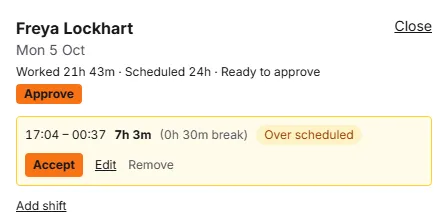
Click a cell to open that day. Each shift shows its clock-in and clock-out, how far from the site each punch was with an Open in Google Maps link, and the full reason. Positions are kept for 90 days; after that the line says location no longer held. The reasons:
- Outside site zone — the phone was outside every site’s radius. The map link draws the route from the site to the punch.
- Missing punch — a clock-in with no clock-out, or the reverse. A clock-in older than 16 hours with no clock-out counts as missing. This is the only flag that emails managers (it goes to every manager and admin in the organisation).
- No location / Location was not current — no position, or one more than two minutes old.
- Time entered by employee — typed on their phone rather than tapping Clock in/out. The line shows the time entered and when.
- Over scheduled / Unscheduled — more than rostered, or no shift that day.
- Overlaps a shift a manager entered — punches that cover hours someone had already added or corrected by hand, usually a phone that synced late. Both lines count until you remove the wrong one.
Then either:
- Accept — the punch stands as it is. Add a note if you like. The cell turns plain, and the shift records who accepted it and when. You can accept on an approved or locked week too.
- Edit — change the start, finish or break (a finish before the start means overnight). Rotaleave refuses a time that overlaps another shift on the same timesheet. Saving counts as having looked, so the amber clears. The shift is marked Corrected by a manager; Undo correction puts the clocked times back.
- Remove — for a punch made by mistake. It counts 0 hours and stays, marked Removed by a manager; Restore brings it back. A shift you added yourself is deleted outright.
- Add shift — a day with no punches, or a second shift. The break starts from the person’s rota shift that day.
Edits are only possible while the week is Draft or Ready to approve. If punches arrive after a week is approved, the totals do not change; the day panel shows how much clocked time is not included. Notes are optional; the employee sees corrected times and your note on their own timesheet, but not your name.
If a later punch changes an accepted shift — say the rota changes and it is now over schedule — only the new reason comes back as amber.
Approve
Approve a row with its Approve link. Approve week approves every ready sheet in the week for the people you can see (and the department you have picked, if any), including rows hidden by Issues only. Warnings never hold a week up, with one exception: a shift that overlaps one a manager entered counts its hours twice until you accept it or remove the wrong one, so Approve week leaves that sheet for you. Any other un-accepted cell stays amber on the approved sheet so you can still look later. Rotaleave reports what it did — “Approved 11, skipped 2 (empty, not yet ready, or an overlap to accept first).” People are emailed when their timesheet is approved unless they have switched that off.
On your phone
Managers get a Team tab in the app: who is in, out, not in or off today, with the same accept and edit actions. See Check your team today.
Export
Export CSV downloads the week (timesheets-2026-07-06.csv) with a row per person who has something that week: name, week, status, and worked, break and scheduled hours in decimal hours. The payroll export has a Worked hrs (period total) column, filled from approved timesheets only; for leave-based payroll codes, see that page.