Create your account and organisation
Sign up for Rotaleave, confirm your email and land in your new organisation — free for teams of 10 or fewer, with a 30-day trial first.
Updated 13 October 2026
Rotaleave is free for teams of 10 or fewer, and every new organisation starts with a 30-day free trial with full access — no card needed.
Sign up
- Go to app.rotaleave.co.uk/signup.
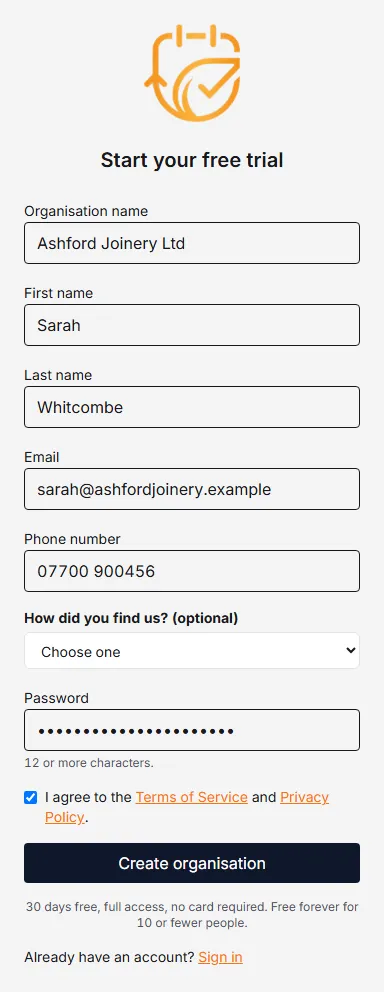
- Fill in the form:
- Organisation name — your company or team name.
- First name and Last name.
- Email — this becomes your login. Each Rotaleave account needs its own email address.
- Phone number — required. A UK number can start with 0 or +44.
- How did you find us? (optional) — pick one if you like. Choosing “Someone recommended it” or “Something else” adds an optional box for who or where.
- Password — at least 12 characters. There are no arbitrary symbol rules; length is what matters.
- I agree to the Terms of Service and Privacy Policy — you must tick this. Create organisation stays greyed out until you do.
- Click Create organisation.
You’ll see a Check your email screen. We send a confirmation link to the address you entered.
Confirm your email
Open the email and follow the link, then click Confirm email. That one click activates your organisation and signs you in — you already chose your password during signup, so there’s nothing else to set.
The link in the email expires after 7 days. If it has expired, the page shows an error with a Send me a new link button — use that. Signing up again with the same email won’t work while the first signup is still on file, because that address is already registered. A signup that is never confirmed is deleted three to four weeks after it was made: from 21 days on, Send me a new link stops working for it, and once it has been deleted you can sign up again.
What happens next
By default, the first time an admin lands in the app, you’re taken into a practice company — a pretend organisation with pretend staff — where you can try everything before setting up your own. A pop-up offers a 5-minute tour or Skip, just let me explore. Anything you do in the practice company is thrown away when you sign out. When you’re ready, Exit sandbox → set up my company at the top takes you back to your real organisation. You can come back to it from your name menu (top right) under Sandbox mode.
In your real organisation, the setup wizard then launches automatically. It asks how you work, switches on the features that fit, then walks you through your leave year, allowances, leave types, bank holidays, working hours, people and approvals — about ten minutes end to end. You can press Skip for now on any step and come back later from Settings → Data → Setup wizard.
See Set up your organisation for a step-by-step tour of the wizard.
Common problems
- “This email already has a Rotaleave account.” — Each account needs its own email address. If you just signed up, check your inbox for the earlier confirmation link instead of signing up again.
- “Password must be at least 12 characters.” — Make it longer; a short phrase works well.
- “Too many attempts — try again later.” — Signup is limited to 5 attempts an hour from one network address; wait and try again.
You were invited instead?
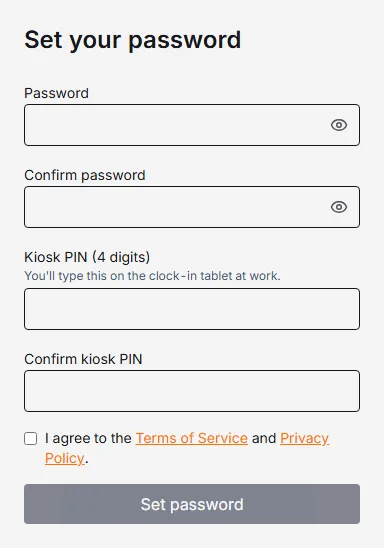
If a colleague invited you, don’t sign up — open the invite email and follow its link. You’ll be asked to Set your password (12+ characters, entered twice) and to tick the Terms of Service box. If your organisation uses clock-in, you’ll also be asked to choose a 4-digit kiosk PIN on the same screen, unless your department is set not to need one. Invite links last 7 days; if yours has expired, use Send me a new link on the page, or ask an admin to resend the invite from the People page.