Scheduled email reports
Get Rotaleave reports by email every month — pick recipients, keep your filters, send a test, and pause or delete schedules.
Updated 13 October 2026
Any report you find yourself running every month can run itself. Managers and admins can set schedules up, once an admin has switched on Scheduled reports under Settings → Organisation → Features. Until then the Email me this monthly button doesn’t appear.
Create a schedule
- Open Reports and set up the view you want — the tab and the department, team and leave-type filters. The schedule remembers those filters; it doesn’t remember the From/To dates, because every email covers a fixed month.
- Click Email me this monthly (top-right).
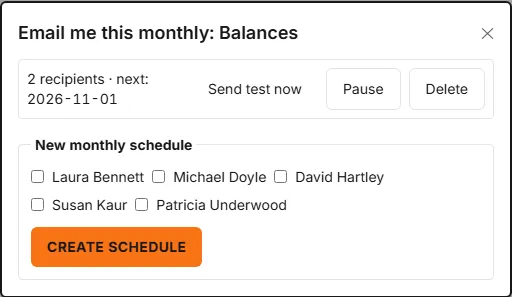
- Under New monthly schedule, tick the recipients — any of your active managers and admins.
- Click Create schedule.
That’s it: the report arrives by email once a month. The first one comes on the 1st of next month, and each email covers the previous calendar month (the Expiring carry-over report looks at the next 90 days instead). It goes out in the organisation’s morning, at about 07:00 local time. The report is in the body of the email as a table (with a link to the full report online), not an attachment. The Balances, Leave log, Absence, Summary and Expiring carry-over tabs can all be scheduled (the payroll export can’t — payroll runs deserve a human).
Manage schedules
The same dialog lists every schedule for the current report — how many recipients it has and the next send date, with three controls each:
- Send test now — sends the email to you straight away, marked “[Test]”, so you can check it before trusting it.
- Pause / Resume — stop sends without losing the setup (paused schedules are marked).
- Delete — gone for good.
Tips
- Create separate schedules per department by setting the department filter before scheduling — each schedule remembers its own filters.
- Recipients must be active managers or admins; reports carry organisation-wide data, so they follow the same access rule as the Reports page itself.
- Scheduled reports are operational email: there’s no personal switch to turn them off. To stop one, pause or delete the schedule.
- Emailed Balances reports list current staff only, not leavers.
- Want a personal daily digest instead? That’s notification preferences, not scheduled reports.