Coverage rules and limits
Set minimum-cover rules by skill, cap how many people in a department can be off at once, and read the coverage board.
Updated 13 October 2026
Rotaleave can check every leave request against two kinds of limit: a coverage rule (at least this many people with a given skill must be working) and a department limit (no more than this many people from a department off at once). Both only look at leave types that take the person out of the working count, and both count approved leave only. A colleague’s request that nobody has decided yet does not use up anyone’s cover.
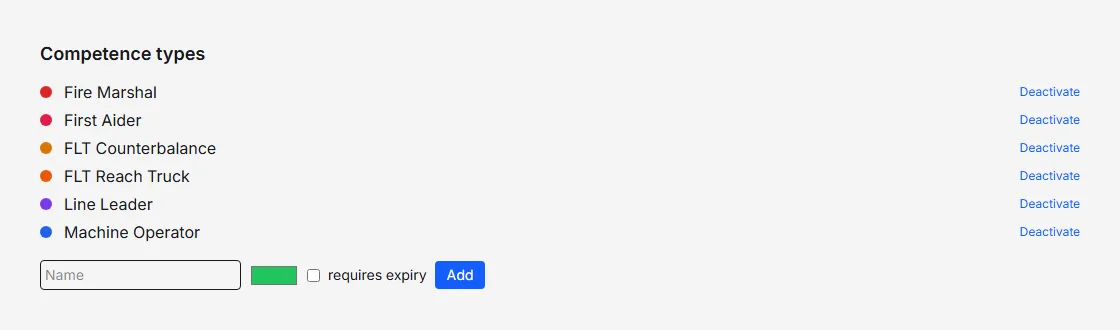
Skills (competence types)
A coverage rule is written against a skill, so start by defining the skills. In Settings → Rota & attendance → Manage, open Competence types (admins only). Give each skill a name and a colour, and tick requires expiry if it lapses, such as a first-aid certificate. Then give people their skills on People → Skills, a grid of people against skills. Managers and admins can open it, but only admins can change it. Click a cell and set Valid from and Expires; a skill marked as requiring expiry won’t save without an expiry date. A person counts towards a rule on every day up to and including their expiry date.
Coverage rules
Admins manage rules at Settings → Rota & attendance → Manage → Coverage rules. Each rule has:
- Competence — the skill it protects.
- Minimum present — at least this many people (1 or more).
- Enforcement — block or warn.
- Department — all departments (organisation-wide), or one department.
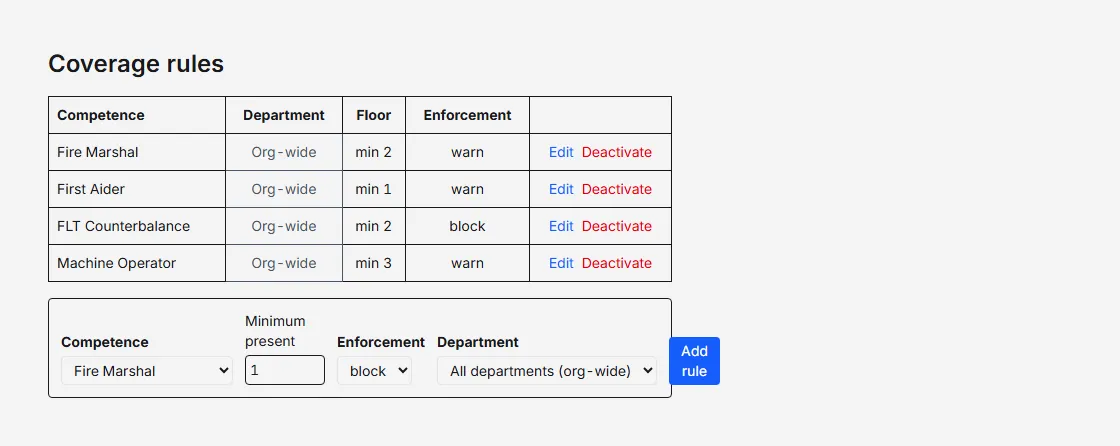
The Department choice only appears once the Department cover rules switch is on, in Settings → Organisation → Features. Without it you can still make organisation-wide rules. A rule’s department can’t be changed afterwards: deactivate it and add a new one. If the switch is later turned off, existing department rules can no longer be edited.
Edit changes the minimum and enforcement from today onwards. Deactivate stops the rule applying.
What counts towards a rule
Someone counts on a given half-day if they are active, scheduled to work that half-day, hold the skill on that date, and are not on approved leave. An organisation-wide rule counts everybody; a department rule counts only people in that department. A request is checked against a rule only if the person asking holds that skill. If they belong to a department, it is checked against that department’s rule as well as the organisation-wide one.
Block or warn
- Warn never stops or delays anything. Only managers and admins see it, as an amber “Warning” line while they build a request. Approvers do not see warn rules on the Approvals page.
- Block is enforced differently by role:
- Staff are not refused and see no coverage message. The request is sent for approval even if the leave type would normally be approved automatically.
- Managers and admins are stopped with “This request would breach coverage” and must switch on Override this breach and give an Override reason. The reason is recorded.
When an approver opens a request that would breach a block rule, the card shows ”✗ Approving leaves a gap”, and Approve opens “Approve despite the coverage gap?”, which needs an override reason. See Approve or decline requests.
Managers also get a Check coverage button on the request form.
The department limit
Admins set it in Settings → People & structure → Departments: select a department and fill in Max people off at once (0 = no limit). The field saves when you click out of it. The limit applies to the requester’s own department and counts other active members with approved leave on the same day.
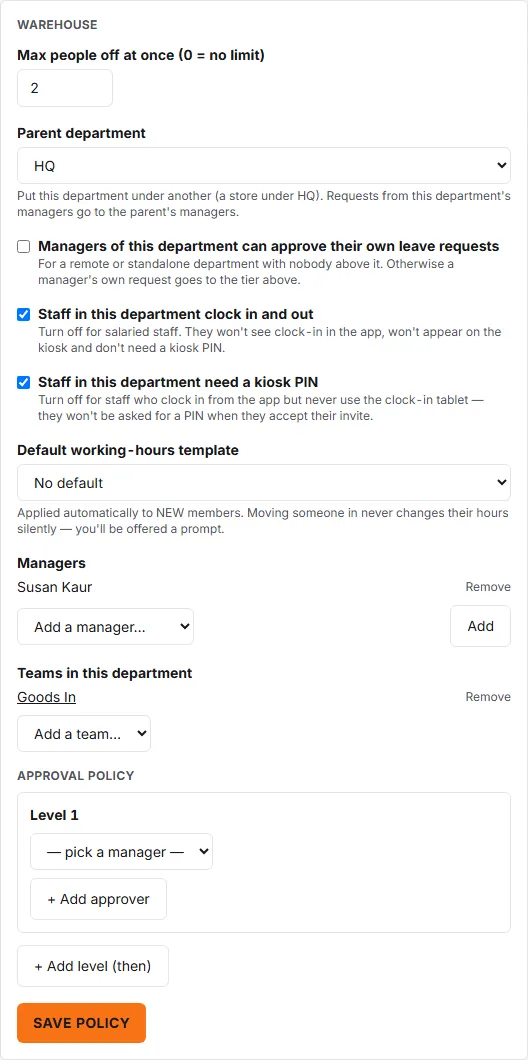
It behaves like a block rule, never a warning. A request from staff is sent for approval, where approvers see ”⚠ Department over capacity” with the dates and must give an override reason to approve. A manager or admin who books over the limit from the request form is refused with “This request breaches a coverage rule.” The form offers Override this breach only when a block rule or a blackout period is breached as well; one override and reason then cover the limit too.
The coverage board
Schedule → Coverage shows one week at a time, with Previous week and Next week. Each rule is a row with a figure per day, such as 2/2 (people present over the minimum): green when there is slack, amber when there is none, red when it is below the minimum. Closure days show Closed, and a Tickets lapsing this week list appears when skills expire.
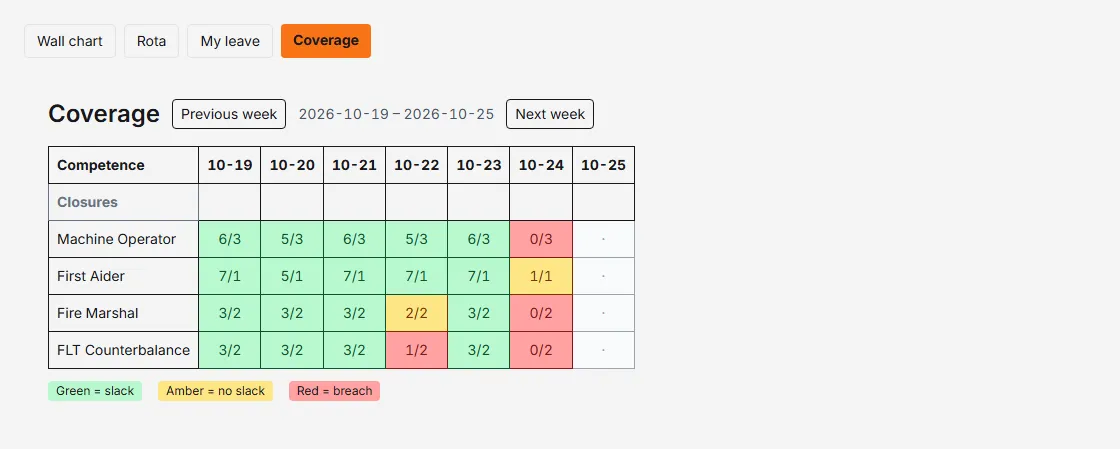
Managers and admins always see it. Staff see it only if an admin turns on Show coverage to staff in Settings → Organisation.
In the mobile app, approving a breaching request asks for a reason too.