Year calendar
One person's January-to-December calendar opened from the wall chart — what the balance line shows, which days are shaded, and what a click does.
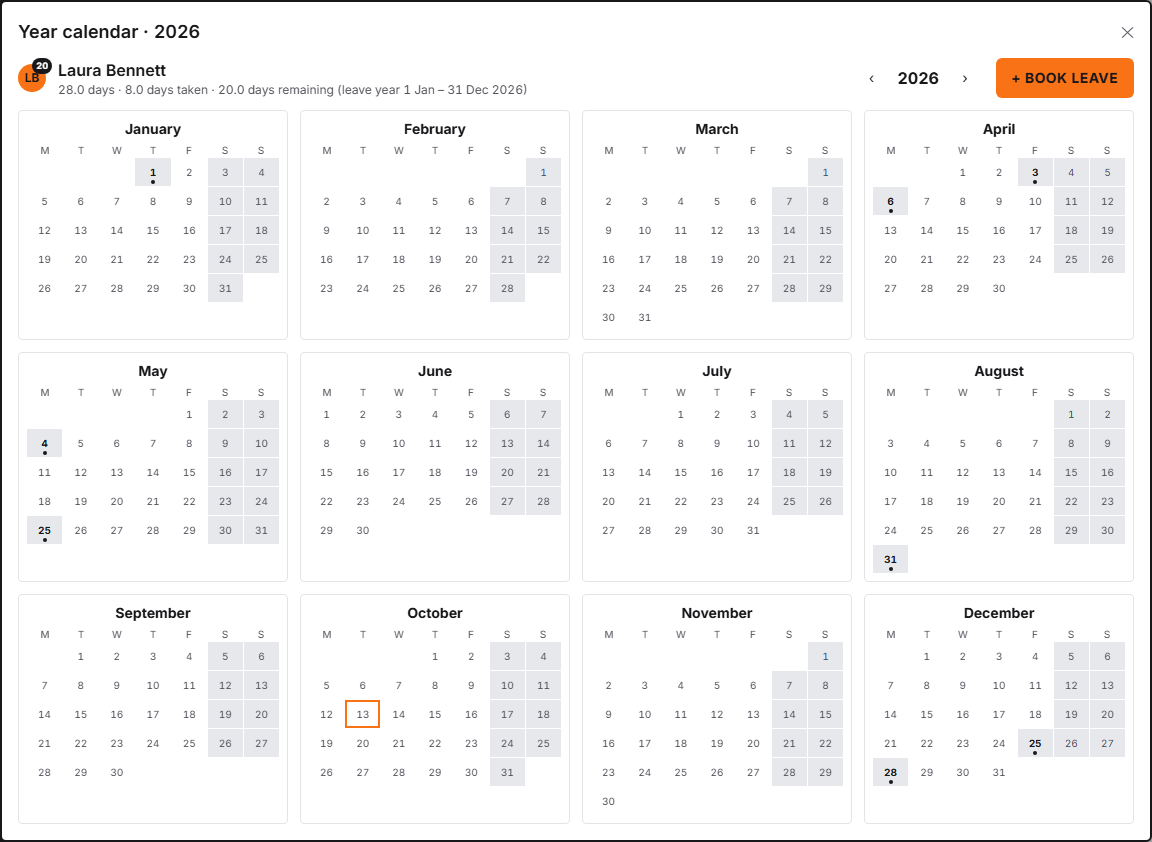
Controls
| # | Control | What it does | What it changes | Who |
|---|---|---|---|---|
| 1 | Year # | Moves the calendar a year back or forward. On the wall chart (including when you arrive from Year at a glance on My leave) the year is kept in the page address, so a refresh or a copied link reopens on the same year. Opened from People it is not kept in the address, and a refresh closes the calendar. | Only the view. On the wall chart, stepping the year replaces the page address rather than adding to it, so the browser's back button closes the calendar rather than walking back through years. Opened from People, nothing is added to the address, so the back button leaves the People page. | employee, manager, admin |
| 2 | Balance line # | Entitlement, taken and remaining, in the person's allowance unit, for the leave year in force today when today falls in the year on screen, and otherwise for the leave year that contains 1 January of the year on screen. The leave year's dates are printed after it. Shown to managers and admins for everyone, and to each person for themself — an employee sees it on their own calendar and on nobody else's. | Nothing. The figures come from the same engine as Reports → Balances. | employee, manager, admin |
| 3 | Book leave # | Opens the request form. Shown only on your own calendar; clicking an empty working day on your own calendar does the same with that date filled in. | Nothing until the request form is submitted. | employee, manager, admin |
| 4 | Months # | Twelve months, each week row starting on your organisation's week start day (Monday unless an admin has changed it). Booked days use the same blocks as the wall chart; shaded days are the person's non-working days — weekends on a standard schedule — and organisation closures, whose name appears on hover. A bank holiday is marked with a bold day number and a dot even when the organisation works through it; a booking on that day is drawn as its block instead. Today has an outline. Clicking a booked day shows the booking. A colleague the organisation's privacy setting hides from you comes back with no bookings and no shading of their working pattern; organisation closures and bank holidays are still marked. | Only the view. | employee, manager, admin |
Clicking a name on the wall chart opens that person’s year (so do Year at a glance on My leave and People → ⋯ → Year calendar): twelve months on one screen, drawn with the same blocks as the wall so nothing has to be learned twice. Opened from the wall chart, the wall stays underneath, filters and all, and closing the calendar puts you straight back on it. Year at a glance takes you to the wall chart first, so closing the calendar leaves you there rather than on My leave. Opened from People, the calendar sits over the People page and closing it returns you to that page.
The balance line
Under the name sits entitlement · taken · remaining, followed by the leave year’s dates, in that person’s own unit. It follows the year on screen: the leave year in force today while today is inside the year shown, and otherwise the leave year that contains 1 January of the year shown. Where the organisation carries leave over and none has been granted yet for a year that has not started, a line underneath says that leave not used this year is added when it ends. Taken counts more than approved requests: pending requests are in it, and where an organisation both closes on bank holidays and deducts them from the allowance, those closure days are in the figure too.
That is why the calendar above reads 8.0 days taken with not one booking drawn on it. The eight are this organisation’s 2026 bank holidays — the eight weekday squares shaded grey, each with a bold day number and a dot beneath it, one in January, two in April, two in May, one in August and two in December.
Why this example looks empty
The calendar above is the signed-in administrator’s own year, opened that way on purpose: + Book leave appears only on your own calendar, so your own row is the only one that can show every control at once. She has booked no leave in 2026, so every square is a day number or a shade. A calendar with bookings on it carries the same solid, half-width, dashed and outlined blocks as the wall chart, and a legend underneath naming the types it used.
What a click does
- A booked day opens that booking’s detail — the same panel the wall chart shows.
- An empty working day on your own calendar takes you to the request form with that date already filled in.
- Every other square is inert. A colleague’s empty day, a weekend and a closure are disabled rather than buttons that lead nowhere.
The year in the address bar
Opening a calendar on the wall chart adds ?person= to the page address, and
that is what lets the browser’s back button close it. Stepping the year with
‹ and › replaces the address instead of adding to it, so back still
closes the calendar in one press however many years you have moved through.
Both values are in the address, so a refresh or a copied link reopens the same
person on the same year. Year at a glance on My leave opens the wall chart
with the person already in the address, so the same holds — except that back
returns you to My leave.
Opened from People, none of this applies. Nothing is added to the address, so a refresh closes the calendar, a copied link opens People without it, and the back button leaves the People page.
What you can’t do here
- You can’t book leave for someone else from their calendar — + Book leave is yours alone.
- You can’t approve, decline or edit a booking here; the day panel links you onward.
- You can’t see anyone else’s balance line unless you are a manager or an admin.