Your timesheet
See your own weekly timesheet in Rotaleave: the hours you clocked, breaks, flags, how the week gets approved, and what to do if a time is wrong.
Updated 13 October 2026
Every time you clock in and out, Rotaleave builds your timesheet for the week for you. You can look at it at any time, but you cannot edit it yourself. Your manager reviews and approves it. This page explains what you see. For how to clock, see Clock in and out; for the manager’s side, see Review and export timesheets.
Where to find it
On the web, choose Timesheets in the menu. For staff the page is titled My timesheet; managers and admins see the review table on the same page instead. If you cannot see it, clock-in and timesheets are switched off for your organisation, or your department is set not to clock in, and the page says “Could not load your timesheet.” In the mobile app, tap View my timesheet on the clock card on the home screen.
Use Previous week, Next week or the Week starting date to move between weeks. Weeks start on the day your organisation has chosen, which is not always Monday. In the app, pull down to refresh, and Next stops at the current week.
What a week shows
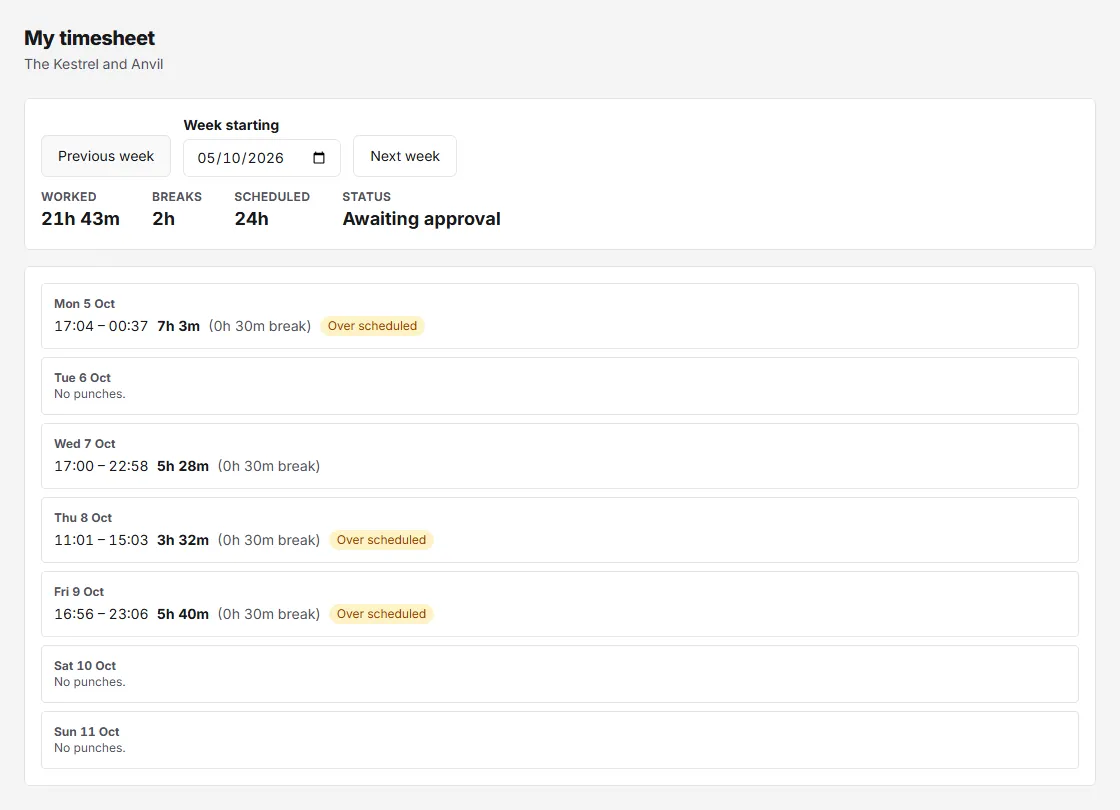
At the top are four figures:
- Worked: your clocked time, with breaks already taken off.
- Breaks: the break time taken off.
- Scheduled: the time on the rota shifts you are assigned that week, after their breaks.
- Status: where the week has got to (see below).
Below, each day lists its lines: the start and end time, the hours worked, and any break in brackets. If you have no punches at all, it says No punches this week.
When you are on the rota for a day, the break on that rota shift is taken off your clocked time, never more than the time you were clocked in. If you are not on the rota that day, no break is taken off.
Flags
A small tag on a line means the line has something a manager may want to look at. A flag is not a penalty and it does not stop your hours counting.
- Clocked in: a shift still in progress. This is green because nothing is wrong.
- Missing punch: you clocked in and no clock-out was recorded within 16 hours. Managers and admins are emailed about it, once for each day.
- Outside site zone: the location sent with your punch was outside the site’s zone. For a punch from your phone, that means outside the zone of every site.
- No location and Location was not current: your phone sent no location, or one that was more than two minutes old.
- Time entered by employee: you typed the time yourself instead of tapping now.
- Over scheduled: you worked longer than your rota shift.
- Unscheduled: there was no rota shift for you that day.
- Overlaps a shift a manager entered: your punches cover hours a manager had already put in by hand, so your manager has to decide which stands.
Amber tags are still waiting for a manager. Grey tags have been accepted by a manager, or do not count as a warning for your week (for example Unscheduled when you have nothing on the rota).
Status
- In progress: the week is still running.
- Awaiting approval: once the whole week has passed, Rotaleave submits it automatically. You do nothing. This happens when the timesheet next refreshes, which includes you opening it.
- Approved: a manager has approved it. An approved week is frozen, so a late punch no longer changes it.
You are emailed when your week is approved, and the app sends a notification too. You can turn this off under Account with My weekly timesheet is approved; see Email notifications and digests. Rotaleave does not email you about flagged punches; those go to managers and admins.
If a time is wrong
You cannot change a line yourself, so tell your manager. They can correct a time, add a missing one or remove a line. You then see a note on the line: Corrected by a manager, Added by a manager, Removed by a manager or Hours added by a manager, with their reason if they gave one, and the original clocked times beside a correction. Their name is not shown to you.
If you forgot to clock out, the app lets you enter the time you finished afterwards with Set time, as long as that time was within the last 12 hours; the line is then tagged Time entered by employee. After that, ask your manager.