Import from Ento
Bring your people and leave history from Ento into Rotaleave with an Employees CSV and optional Leave CSV — previewed before anything is written.
Updated 13 October 2026
Ento has announced it is closing down — export your data while you still can. Rotaleave imports Ento data from CSVs, admin-only, from Settings → Data → Import / Migrate, the People page’s Import / Migrate button, or during onboarding on the Your people step — set Source to Ento (CSV).
Build the exports in Ento
Ento has no single fixed export (and no self-serve API), so you build export templates:
- Log in to Ento as an admin.
- Go to Settings → Export templates.
- Build (or run) an Employees export — required. Ento itself only insists on Employee ID and First name, but add Email too: Rotaleave logins need one, and rows without an email are blocked with an error. Locations, Team, Access Level, Status and Start Date are optional but worth including.
- Optionally build a Leave export with Employee ID, Leave Category, Start Date, End Date, Status, Half Day and RequestId — add it if you have leave history to bring.
- Download both as CSV.
What comes across
| Column | Becomes in Rotaleave |
|---|---|
| Employee ID | links leave rows to the right person in this import (and flags duplicates) |
| identifies the person (must be unique) | |
| First name / Surname | Name |
| Locations | Department |
| Team | Team |
| Access Level | Role (admin, manager or employee; a value it doesn’t recognise becomes employee, with a warning) |
| Status | Active/archived |
| Start Date (employees file) | Start date |
| Leave Category | Leave type (created if missing) |
| Start Date / End Date (leave file) | Leave dates |
| Half Day | Half-day/day-part |
| RequestId | used to keep re-runs safe |
Any column Rotaleave doesn’t recognise is listed as a warning — never dropped silently — so you can fix the export and run it again. Remaining balances are never imported; enter opening adjustments after migrating. No annual allowance comes across either, so your organisation’s default applies until you set allowances. Everyone starts on Monday to Friday, full days — unless their department already has a default working-hours template in Rotaleave, in which case they get that — so set their working hours afterwards.
In the leave file, a row is skipped with a warning if it has no request id, has a status other than approved, pending, cancelled or declined, or can’t be matched to someone in the Employees file. New leave types are created as needing approval, and whether each comes off the allowance is guessed from its name; the preview lists each guess as a warning.
Preview, then import
- Upload the Employees CSV (and the Leave CSV if you have one).
- Click Preview — nothing is written yet. You get Created / Updated / Skipped counts per entity plus warnings for anything the importer didn’t recognise.
- If any rows have real errors, the import is blocked with the list: “Fix these rows and re-upload — nothing has been imported.” Fix the CSV and preview again.
- Click Import and look for “Import complete.”
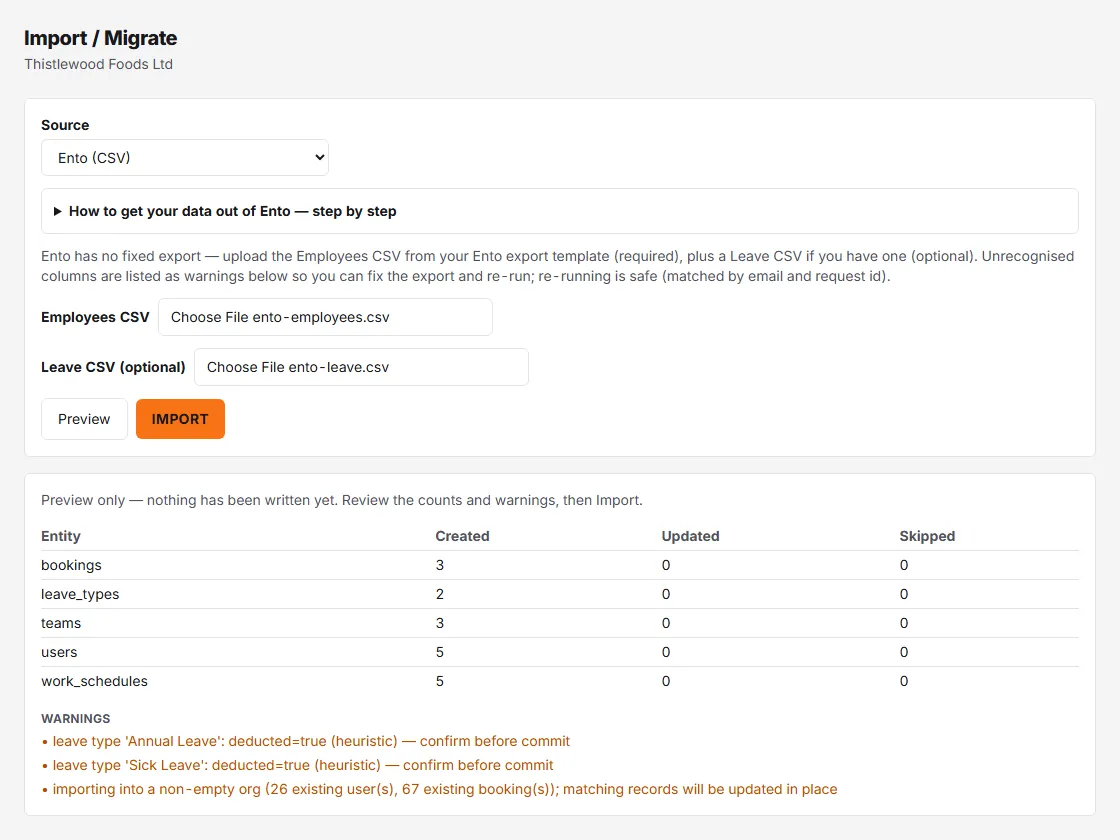
The import is refused if it would leave an organisation with no trial or subscription with more than 10 people, and it can’t be committed from the practice company.
Running it again
Re-running is safe by design: people are matched by email and leave records by request id, so corrected files update rather than duplicate. Nothing is duplicated, but an update puts the file’s values back over what you changed in Rotaleave. This applies just as much to a first import into an organisation that already has people:
- People. A matched person’s name, role, department (from Locations), home team (from Team) and start date are taken from the file again, and any personal allowance you set is cleared back to your organisation’s default, because the file carries none. A blank start date in the file blanks it in Rotaleave, and the allowance unit goes back to your organisation’s unit. Their working days are reset to their department’s default working-hours template, or to Monday to Friday if the department has none.
- Roles, including yours. Role is set from the file’s Access Level column every time: admin, manager or employee, with a blank or anything the importer doesn’t recognise becoming employee (so does everyone, if the file has no Access Level column). If your own email is in the Employees file and your row isn’t an admin there, importing takes away your admin role in Rotaleave — and if you were the only admin, nobody in the organisation can give it back. Check your own row before you import.
- Archived or not. Status follows the file’s Status column. Someone you archived in Rotaleave who is active in the file is un-archived (back to invited, and counting as a seat); someone the file marks as inactive is archived.
- Department managers. Every department named in the file has all its managers removed, because the file names none (a manager Access Level gives the manager role, but doesn’t make anyone the manager of a department). Put them back under Settings → People & structure → Departments afterwards.
- Leave types. A leave type in the Leave file with the same name as one you already have is overwritten: colour, whether it comes off the allowance (guessed from the name), needs approval (set to yes), private (set to no) and removes presence (set to yes).
Iterate until the preview is clean.
After the import
Importing sends no invitations itself, but it doesn’t stay silent: anyone imported as a current member of staff who hasn’t accepted is automatically emailed a reminder with a sign-up link 2 days after the import, then at 7, 14, 30, 60, 90 and 120 days. The reminders stop once the person accepts, is archived or uses the unsubscribe link in the email, and none are sent while the organisation is closing. People imported as archived get none. There’s no setting to hold the reminders back, so import when you’re ready for people to hear from Rotaleave — and invite everyone yourself as soon as you are.
Just have a spreadsheet?
If your data isn’t from Ento at all, use the Staff CSV import on the same page — click Download CSV template, fill it in (including Mon–Sun working patterns) and run the same Preview → Import flow. A Send invite emails now switch, off by default, emails the newly created people when the import finishes; leave it off and the reminders described above still start on the second day. Details in Invite your team.