Working-hours templates
Define working patterns once — 4-day weeks, part-time, half days — and assign them per person or per department. Allowances pro-rate automatically.
Updated 13 October 2026
Everyone starts on Mon–Fri full-time. Working-hours templates describe any other pattern — and because leave deducts only on days someone is scheduled to work, getting hours right is what makes allowances and bookings accurate. Templates live at Settings → People & structure → Working-hours templates (admin-only) and also appear in the Working hours step of the setup wizard. Every new organisation starts with one template, “Full-time (Mon–Fri)”.
What a template is
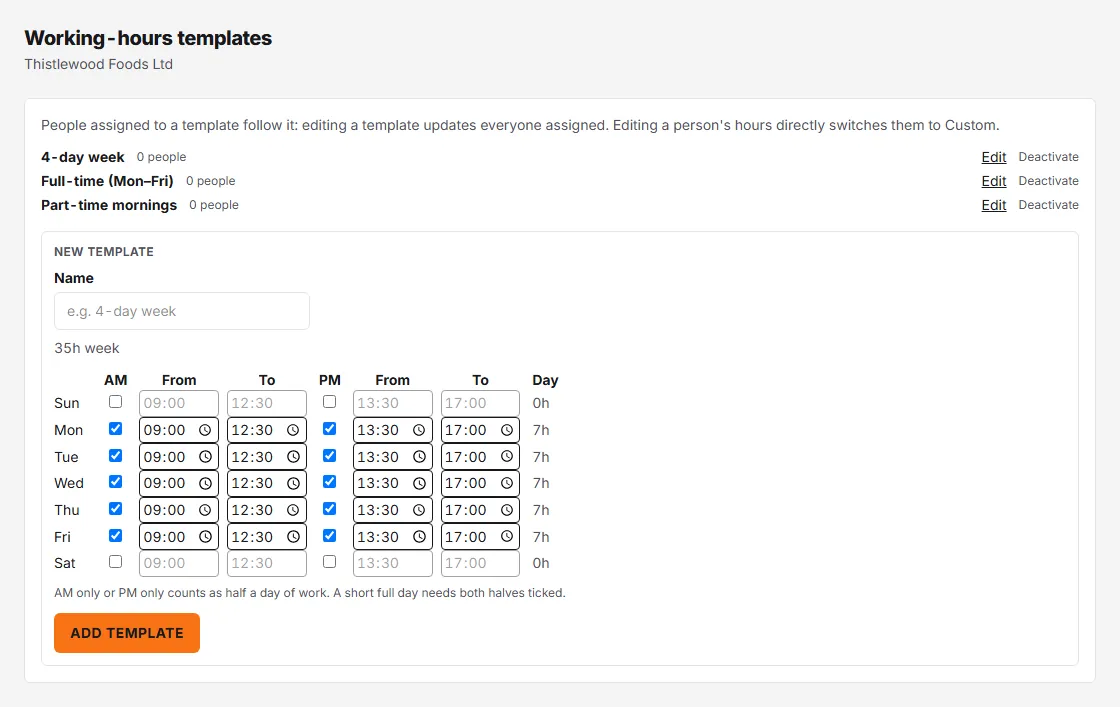
A template is a name (for example “4-day week”) plus a seven-day schedule grid. Each day is Full, AM, PM or Off, with start and end times. People assigned to a template follow it: editing a template updates everyone assigned to it. A template is always one week; a pattern that changes from week to week is set on the person instead — see below.
Create one
- Under New template, give it a name.
- Set each day in the grid.
- Click Add template.
The list shows every template with how many people are on it. Edit changes it — if people are assigned you’ll see a “Change [name]?” confirmation listing exactly whose hours will change. Deactivate retires a template; anyone on it keeps their current hours and becomes Custom.
Assign hours to people
Three ways:
- Per person — admins open People, click ⋯ on the person’s row and choose Schedule, then pick a template, or choose Custom and edit their days directly. Editing a person’s hours directly switches them to Custom, detaching them from template updates.
- Department default — set a Default working-hours template on a department. It’s applied automatically to new members; moving someone in never changes their hours silently (you get an “Apply department hours?” prompt), and Apply to all members updates existing people after showing who’s affected.
- Staff CSV import — reference the template by name when bulk-adding people.
A pattern that repeats over more than one week
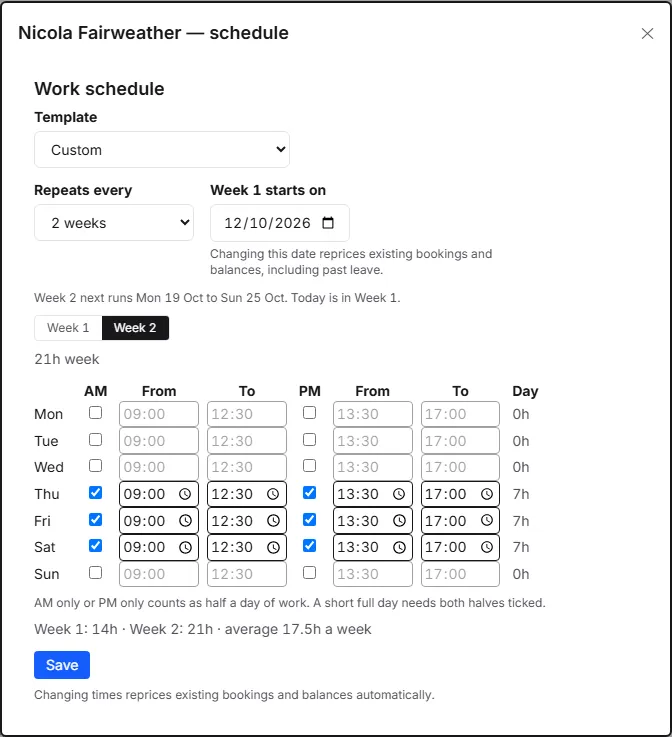
Some people don’t work the same days every week — Tuesday and Wednesday one week, Thursday to Saturday the next. Set that on the person:
- Open People, click ⋯ on their row and choose Schedule.
- Set Template to Custom.
- Set Repeats every to 2 weeks (it goes up to 4 weeks). Each new week starts as a copy of Week 1.
- Set Week 1 starts on to the first day of a week in which they work the Week 1 days. Any date will do, past or future: the pattern repeats from it in both directions. The line under the grid gives the dates the week on screen next runs and says which week today falls in — check that it matches what they are really working this week.
- Use the Week 1 and Week 2 buttons to move between weeks, and set the days and times for each. The days are listed in the order they fall in the week, starting from the weekday you chose in step 4.
- Click Save.
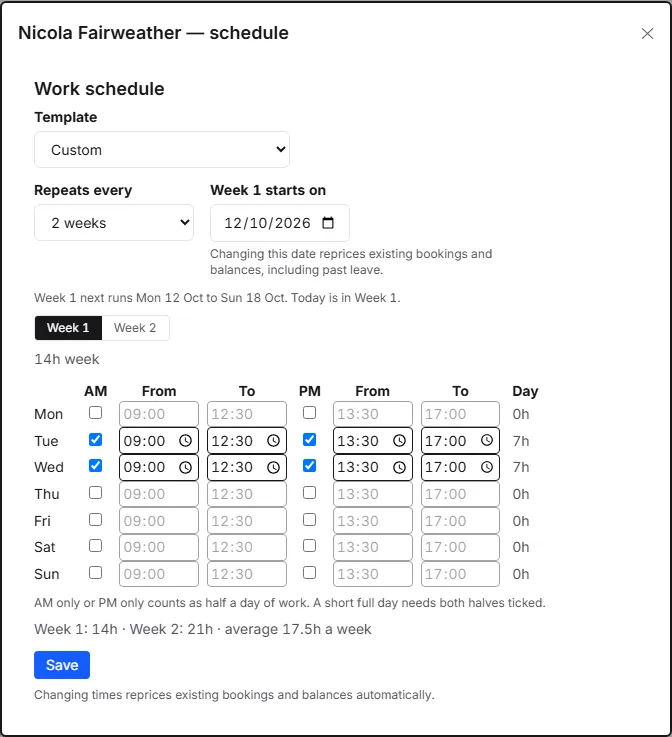
Under the grid you’ll see each week’s hours and the average: “Week 1: 14h · Week 2: 20h · average 17h a week”.
What follows the week, and what uses the average:
- Leave, the rota and the wall chart follow the week. A day off on a Week 2 Thursday deducts that Thursday’s hours; the same weekday in Week 1, when they aren’t working, deducts nothing. On the rota, their contracted hours and Fill from working patterns use the pattern for the week on screen.
- The allowance uses the average. Someone working 14 hours one week and 20 the next has their allowance pro-rated on 17 hours a week, so it doesn’t change from week to week. The length of a day of leave is worked out across the whole pattern in the same way.
Three things to know:
- Templates are one week. Putting this person on a template replaces every week of their pattern with the template’s single week — whether you do it in the Schedule window, in Personal settings, with the bulk Schedule action, with a department’s Apply to all members, or by choosing Apply in the Apply department hours? prompt that appears when you move someone to a department with a default template. The Schedule window warns you before you save; the other routes do not.
- Changing the pattern or its start date reprices leave already booked or taken, because a pattern has no “from this date” of its own.
- The staff CSV import sets a one-week pattern. Importing a person again replaces a repeating pattern with one week.
Why it matters for leave
- Part-time and half-day patterns pro-rate the annual allowance automatically.
- A booking that falls on someone’s day off deducts nothing.
- Hours-mode bookings deduct exactly the overlap with scheduled hours — see Book time off.