Request leave
Every control on Request leave — why managers see a coverage check staff don't, what the zero-deduction warning means, and warn versus block.
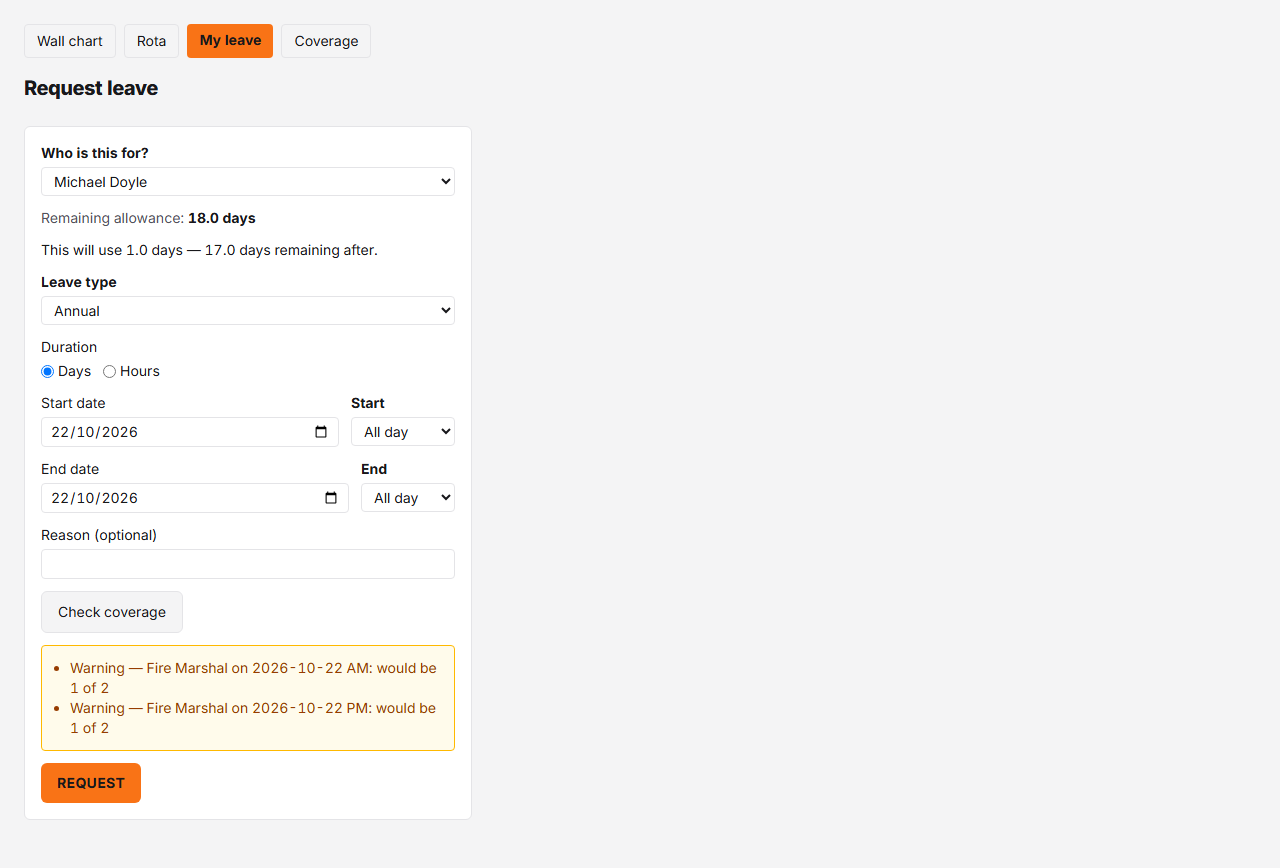
Controls
| # | Control | What it does | What it changes | Who |
|---|---|---|---|---|
| 1 | Remaining allowance # | The requester's leave balance for the leave year the chosen start date falls in — your own when you're booking for yourself, but the person chosen in Who is this for? when a manager or admin books on someone's behalf, or the person named on the booking when a manager or admin amends someone else's request from Approvals. For the current leave year, that's the same remaining figure as the My leave page; My leave opens on the current year (its This year | Next year switch shows the other), so the two won't match once the start date is in a different one. | Hovering it shows the figure in the other unit (hours if you're set up in days, or the reverse). The header follows the leave year of the chosen start date: move the start date into another leave year and it refetches for that year, naming it in brackets — "Remaining allowance (1 Jan – 31 Dec 2027)" — whenever the year shown isn't the current one. The deduction quote below still updates live on every change, dates included. | employee, manager, admin |
| 2 | Deduction quote # | A live preview of what this request will deduct, refreshed about 300ms after you change the leave type or the dates. | The figures are in YOUR unit, whatever the booking's shape: someone whose allowance is kept in hours sees a whole day off quoted as hours, not as "1.0 hrs". Reads "This leave type doesn't use your allowance" instead of a figure for a type that doesn't deduct (Sick, in the demo org). Where the balance on the leave date is not today's — an organisation that accrues monthly — the line names the date it applies to: "By Thu 17 Sep you'll have 12.0 days — this will use 1.0 days — 11.0 days remaining after." Where the request would take the balance below zero within the person's leave-in-advance limit, the line ends "(leave in advance)" and turns amber; a request that spans two leave years gets one line per leave year, each headed by that year's dates. In Hours mode a type that deducts shows its own preview instead — see "The zero-deduction warning" below — while a type that doesn't deduct shows the same "This leave type doesn't use your allowance" line as in Days mode. | employee, manager, admin |
| 3 | Leave type # | Which leave type this request books. | Locked while you're amending an existing booking — you can change its dates but not what kind of leave it is. | employee, manager, admin |
| 4 | Duration # | Chooses whether this request is booked in Days or in Hours. | Appears for any leave type that can be booked in hours. In a default set-up that is every ordinary leave type: Allow half-day and part-day bookings and Allow bookings in hours (both under Settings → Leave) are on out of the box, and together they are what make an ordinary type bookable by the hour. Switch Allow bookings in hours off and the radio goes while the Start and End part selects stay — mornings and afternoons only. Switch Allow half-day and part-day bookings off and ordinary types become whole days only — the radio goes, and so do the part selects, leaving just the two dates. A TOIL type ignores both settings and follows TOIL is taken in instead, so TOIL can be hourly where everything else is whole days, or the reverse. | employee, manager, admin |
| 5 | Start date # | The first day this request covers. | The end date below fills itself in from this one until you set an end date yourself, so a single day off is one date typed, not two. Hours mode replaces this with a single Date field instead of a start/end pair — see "The Hours mode fields" below. | employee, manager, admin |
| 6 | Start # | Whether the first day is taken whole or from lunchtime — "All day" or "Afternoon". | Pick Afternoon to begin at lunchtime; on a single day — start and end the same date — that is how you book an afternoon half day. Hidden when the organisation doesn't allow half days, or for a leave type booked only in whole days: the request is then a whole day at each end. | employee, manager, admin |
| 7 | End date # | The last day this request covers — the same as the start date for a single day off. | Filled in from the start date until you change it; once you have, it stays where you put it and the start date stops moving it. Not shown in Hours mode, which books a single day by definition. | employee, manager, admin |
| 8 | End # | Whether the last day is taken whole or only up to lunchtime — "All day" or "Morning". | On a single day, Morning books a morning half day. A single day cannot start in the afternoon AND end in the morning — choose both and the form says so under the End date instead of sending the request. Hidden along with the Start control above wherever half days aren't available. | employee, manager, admin |
| 9 | Reason # | An optional note explaining the request. | Visible to whoever approves it. Leave it blank and nothing about a reason is sent at all. | employee, manager, admin |
| 10 | Check coverage # | Runs a coverage check for the leave type and dates currently entered. | Only visible to managers and admins — employees never see this button, or anything it would produce. | manager, admin |
| 11 | Coverage conflicts # | Lists every coverage rule this request would breach, once the check has run — it runs by itself shortly after you change the leave type, dates or person, and Check coverage runs it again on demand. | Amber for a warn-enforcement breach; red, headed "This request would breach coverage:", for a block-enforcement one. The override control below shares its toggle with a blocking leave embargo too (see "The blackout embargo banner"), so it isn't only this red panel that can bring it up. The screenshot above shows the amber case — see "Warn versus block" below. | manager, admin |
| 12 | Request # | Submits the request for approval. When a manager or admin is booking for someone else it reads "Book leave for" followed by their name. | Disabled while a Hours-mode time error stands, or while an unresolved breach (coverage or blackout) needs an override and reason you haven't given yet. A blocking embargo keeps it disabled for an employee outright, since staff have no override. | employee, manager, admin |
Staff and their managers land on this same form at the same URL, and it isn’t the same form. Coverage checking, the conflict panel below it, the override control and the “Who is this for?” picker are manager- and admin-only — an employee’s version of this screen is everything else here with those pieces simply absent, not greyed out or hidden behind a toggle. If you’re a manager checking what a member of staff sees, don’t go looking for “Check coverage” — it was never sent to them.
Booking for someone else
A manager or admin starting a new request sees Who is this for? at the
top. It lists the signed-in user and the people the server says they may book
for: for a manager, everyone they are an approver for (or cover for) at any
tier, not only the people whose requests reach them first; for an admin,
everyone who hasn’t been archived, apart from anyone whose leave a privacy
block hides from them. Pick someone and the page heading becomes “Request leave
for” their name, the Request button becomes “Book leave for” their name, and
the allowance, TOIL, coverage, embargo and deduction figures all reload for
that person. The picker is not shown when amending an existing booking. People
and wall-chart shortcuts open the form with the person already chosen
(?for=). If the server refuses the choice, the form says “You can’t book
leave for this person.” The person is emailed that leave was booked for them,
and after a successful submit you land on the wall chart.
If the request would have come to the booker first, their approval is recorded as part of the booking. When that still leaves it Pending — another level to go, or a quorum not yet met — the remaining approvers are not sent the arrival email, the push notification or a Teams or Slack message. The request is on their Approvals page all the same, and in the daily summary of requests awaiting approval if they receive it. When the request would go to someone else first, nothing is recorded for the booker and those approvers are notified in the usual way.
The zero-deduction warning
Switch to Hours mode and the form asks for a single date plus a start and end time, in 15-minute steps. Once both times are set it shows one of two messages: how much it will deduct, or — amber, and easy to misread as a bug —
This booking won’t deduct anything — it falls entirely outside scheduled hours.
It’s correct. The deduction is worked out on the server, exactly as the booking itself will be priced: the time range you picked is laid over that person’s working hours for that date — the right week of a pattern that repeats over several weeks, and no hours at all on a day your organisation is closed. If none of the requested hours fall inside a working period, there’s genuinely nothing to deduct. Seeing this almost always means the working pattern is wrong, not the request — someone booking 6pm–7pm off work whose schedule says they finish at 5pm has nothing scheduled at 6pm to be excused from. Check their work schedule — and, for a pattern that repeats, its Week 1 starts on date — before assuming the booking itself is the problem.
Because the figure is fetched, it disappears for a moment whenever you change the date or a time and comes back once you stop.
A TOIL leave type is the exception: in Hours mode it shows its own live quote — “This request: 1.0h TOIL · 4.0h TOIL remaining after” — instead of the allowance preview, and turns amber with your organisation’s limit beside it if the request would take you below zero.
Half days and hours may not be available
What the form offers follows the leave type. Every ordinary type follows the organisation’s Allow half-day and part-day bookings setting (Settings → Leave): switch it off and the Start and End part selects are gone, leaving the two dates on their own — every request is then whole days at both ends. A TOIL type follows the separate TOIL is taken in setting instead, so an organisation that books holiday in whole days can still let staff take TOIL by the hour.
The Duration radio follows a second setting on the same page, Allow bookings in hours. In the default set-up both are on, so you will see the radio on every ordinary leave type. Switch Allow bookings in hours off and the radio disappears but the part selects stay: mornings and afternoons are still yours, a start and end time is not. Switch Allow half-day and part-day bookings off and the radio disappears with the part selects: whole days are then the only shape, and a single option is no choice to offer. A TOIL type follows TOIL is taken in, so it can show the radio in an organisation where nothing else does, or lack it where everything else has it. An organisation whose allowance is kept in hours cannot switch Allow half-day and part-day bookings off — Settings shows it locked on. Nothing is ever greyed out — a shape the leave type doesn’t allow isn’t offered at all, and switching to a type that can’t take the one you had chosen drops the form back to days.
The blackout embargo banner
Turn on the blackout dates feature and a banner can appear above the coverage controls whenever the dates you’ve entered fall inside a configured embargo — amber for a warn-listed one, red for a block-listed one. Unlike the coverage panel below, this one is shown to every role, employees included: an embargo is meant to be visible to staff, not just to whoever approves the request. A blocking embargo also tells an employee outright, in red, that leave can’t be requested for those dates — no override is ever offered to an employee, only to a manager or admin (see “Overriding” below). Like the coverage check below it, this banner is feature-gated: with blackout dates switched off for your organisation, it never renders at all, whatever the dates. It is also never shown for a sickness leave type, because sickness is never embargoed.
Warn versus block
The conflict panel that “Check coverage” can bring up looks different depending on what it found, and the difference isn’t cosmetic:
- A warn-enforcement breach renders the panel amber, listing each rule it would breach with a “Warning —” prefix. The request can still be submitted as-is.
- A block-enforcement breach renders it red instead, headed “This request would breach coverage:”, and brings up the override toggle underneath — submitting past a block requires switching that on and typing a reason. A blocking leave embargo (above) raises the very same toggle, with no red panel here at all — the two share one override control, not one panel each.
The screenshot above shows the amber, warn case: a Fire Marshal shortfall on the pictured date. Two things keep the override toggle off this organisation’s own screen: its one block-enforcement coverage rule (FLT Counterbalance) is held only by staff who aren’t managers, so no manager account here can ever trigger the red coverage panel; and this organisation has the blackout-dates feature switched off entirely, so the embargo banner above never renders here either. Both paths to the toggle are real and both work exactly as described — this org’s own data just can’t put either on screen. If a request you’re checking turns the panel red, or a blackout embargo blocks it, override behaves the same way it does anywhere the toggle is offered.
Amending
Amending a booking replaces it, and the replacement normally goes back for approval.
Two scoped exceptions to that: if the booking you’re amending was already Approved, an admin amending it keeps the replacement approved instead of pending — the same admin bypass used to approve elsewhere in the app, recorded the same way for audit. And a leave type set to not require approval skips the pending step for its bookings, replacements included.
Beyond those two, don’t try to predict the outcome from the leave type or who’s amending — the two can interact. A replacement that breaches a coverage or department-capacity rule can still end up held pending for someone else to review, whatever the leave type’s own approval setting says, because a member of staff (unlike a manager or admin) has no override to clear that breach with — their booking is accepted, but held.
Overriding
One override decision can clear three kinds of breach at once: a blocking
coverage rule, the department’s limit on people off, and a blocking leave
embargo are all cleared by the same toggle and the same reason, because they
share one field on the server (override / override_reason). Whichever of
the three the request breaches, switching the toggle on and typing a reason
records that reason against the booking.
What brings the toggle up is narrower: only a blocking coverage breach or a blocking embargo. The form does not preview the department limit, so a request from a manager or admin that breaks that limit and nothing else is refused — “This request breaches a coverage rule.” — with no toggle to switch on. A member of staff’s own request in the same position is accepted and held Pending instead, and an approver can approve it over the limit, with a reason, on the Approvals page.
An allowance or TOIL breach is not part of that group — it has its own separate override, described next in “The allowance-override prompt”, with its own pair of fields and its own trigger point.
The allowance-override prompt
Submit a request that would take you over your allowance or TOIL balance
and, for anyone other than an admin, it’s simply rejected — the error names
how much you’re over by, but there’s nothing more to do from here. For an
admin, the same submission instead opens a dialog quoting how much it
exceeds the balance by and asking for an override reason before Confirm
override does anything; leave the reason blank and it stays disabled. This
is a separate mechanism from the coverage/embargo override above: a
different pair of fields (override_allowance / allowance_override_reason)
server-side, admin-only rather than manager-and-admin, and it only appears
after you try to submit, rather than being offered up front.
What “over your allowance” measures is what will have accrued by the date of the leave, not what has accrued today. That only makes a difference in an organisation that accrues monthly: booking next November there is judged against November’s balance, so leave you have not earned yet but will have by then is bookable, while leave beyond even that date’s accrual is still refused. Where the whole allowance is granted up front the two figures are the same and nothing changes.
Confirming a past-dated booking
An admin who sets a start date before today sees one more confirmation before the request is created — “This booking starts in the past”, asking whether to “Record past booking” anyway. It still deducts from the allowance like any other booking. Anyone else who tries the same thing is turned away outright — “Bookings can’t start before” followed by a date, then “Ask an admin to record historic leave.” — with nothing to confirm past that. The date is today for a booking of your own; a manager booking for someone else gets the first day of the current leave year as their earliest date.
What you can’t do here
- You cannot change the leave type while amending a booking.
- You cannot book for someone else as an employee — there is no person picker for staff. A manager or admin books for others with Who is this for? above, and amends someone else’s existing request from the Approvals page’s Amend link.
- An embargo blocks a member of staff outright, with no override offered — only a manager or admin sees the override control for one.
- You cannot book a date you have already asked for: a request that overlaps one of that person’s existing Pending or Approved bookings is refused, and the message names the booking in the way — “Overlaps an existing Pending booking, Thu 17 Sep.”