My leave
Every control on My leave — what the four balance figures mean, why some bookings have no Edit or Cancel, and what cancelling actually gives back.
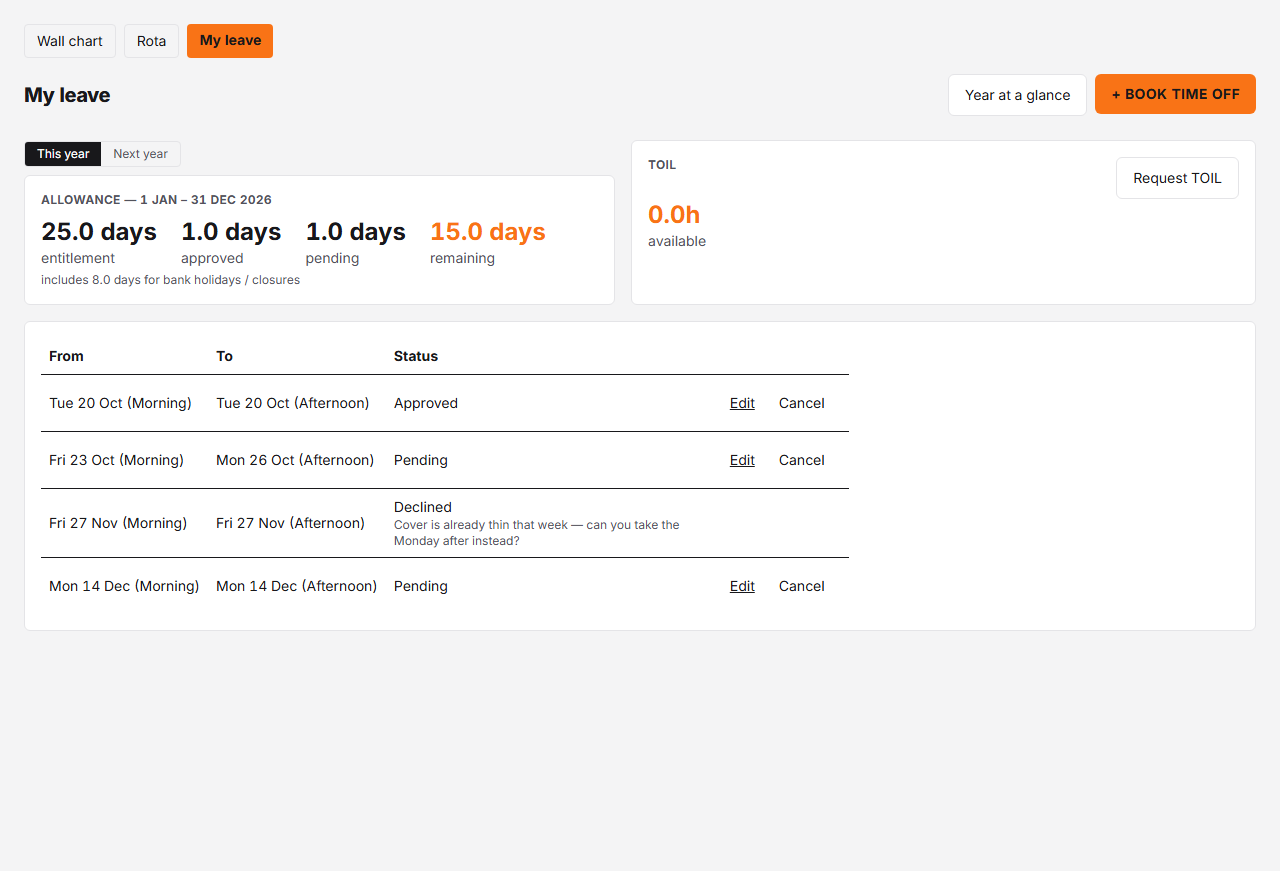
Controls
| # | Control | What it does | What it changes | Who |
|---|---|---|---|---|
| 1 | Allowance summary # | Four figures for the leave year named in the card's heading — entitlement, approved, pending and remaining. | Hovering any of the four figures shows it in the other unit — days if you're set up in hours, or hours if you're set up in days. Pending is shown even when it is zero, so the row keeps its shape the moment a request is approved. A footnote appears when time has carried over from last year (or been borrowed from it), and another when bank holidays or closures have been deducted from your total. A This year | Next year switch above the card shows the following leave year's figures instead. | employee, manager, admin |
| 2 | Entitlement # | The first figure on the card — how much leave you have for this leave year. | Reads "accrued so far" instead of "entitlement" if you build up holiday as you work rather than having a fixed annual number — see "Accrued so far" below. | employee, manager, admin |
| 3 | + Book time off # | Takes you to the booking form to request new time off. | Nothing is booked until you submit that form — this button only takes you there. | employee, manager, admin |
| 4 | TOIL balance # | Your TOIL balance — hours banked from working extra, ready to spend as time off. | Only appears once your workplace has switched TOIL on. It shows even when your balance is zero; the "expiring soon" line only appears once something is actually close to lapsing. If your organisation allows a negative TOIL limit and you've used it, the figure shows in amber with a "Below zero" line naming the limit. | employee, manager, admin |
| 5 | Request TOIL # | Opens a form to ask your manager to credit hours you worked beyond your rota. | Nothing is added to your balance when you send it — it lists under your balance as "awaiting approval" until a manager decides it. Two bounds on the form: the date worked cannot be in the future (the picker stops at today, and the server answers "That date is in the future. TOIL is for hours you have already worked."), and one request covers at most 24 hours — ask for more and it comes back "That's more than 24 hours. A request covers a single day." | employee, manager, admin |
| 6 | Your bookings # | Every one of your bookings from 1 January this year through 31 December next year, with its status. | That window is fixed to the calendar year — it doesn't shift to match your leave year if yours starts on a different date, so it can show more than just "this year and next." | employee, manager, admin |
| 7 | Status # | This booking's current state: Pending, Approved, Cancelled or Declined — and, on a Declined one, the reason the person who declined it gave, on a muted line underneath. | Read-only here. It becomes Cancelled when you cancel a future booking below, or when you amend it (the original is replaced and stays in the list as Cancelled), and Approved / Declined once a manager reviews it elsewhere. A decline reason is optional for whoever declines, so a Declined row with nothing under it means none was given — not that one is hidden from you. | employee, manager, admin |
| 8 | Edit # | Opens this booking, pre-filled, in the request form so you can change its dates or details. | Only appears on a booking that is both in the future and still Pending or Approved. Once its start date arrives, or it's Cancelled or Declined, there's nothing here to edit. | employee, manager, admin |
| 9 | Cancel # | Cancels this booking, after asking you to confirm. | Same future-and-active rule as Edit. Your remaining balance is worked out fresh from your current bookings every time this page loads, so cancelling a Pending or an Approved booking both hand the same time back to your remaining total — see "Cancelling an approved booking vs a pending one" below. | employee, manager, admin |
This is your own leave — what you’re entitled to, what you’ve booked, and what you can still do with each request. Nobody else’s bookings appear here; that’s the Wall chart instead.
The four balance figures
Entitlement, approved, pending and remaining are worked out for the leave year named in the card’s heading:
- entitlement — your total for the year, including any carry-over (it reads “accrued so far” instead if you build holiday up as you work);
- approved — leave a manager has granted;
- pending — leave you have asked for and nobody has decided yet, shown as its own figure so a waiting request is never mistaken for a granted one. It stays on screen at zero;
- remaining — what’s left to book. Both approved and pending come off it.
Hover any of the four and it flips to the other unit — useful if you think in days but your organisation runs the figure in hours, or the other way round. A note under the figures appears when time has carried over from last year (or been borrowed from it), and another when bank holidays or closures have already been taken off your total. If you have gone below zero under your organisation’s leave-in-advance limit, a note says how much was taken in advance.
Above the card, This year | Next year switches to the following leave year’s allowance, loaded only when you ask for it. Where your organisation carries leave over and no carry-over has been granted yet, the Next year card says that leave you don’t use this year is added when this year ends, with the cap if there is one.
Beside + Book time off sits Year at a glance, which opens your own year calendar on the wall chart.
Accrued so far
If you build up holiday as you work rather than starting the year with a fixed number, the first figure reads “accrued so far” instead of “entitlement” — you have no fixed annual amount to show, only what you’ve earned to date at 12.07% of the hours you’ve worked.
Why some bookings have no Edit or Cancel
Edit and Cancel only appear on a booking that is both in the future and still Pending or Approved. Once a booking’s start date arrives it’s history, whatever its status was — there’s nothing to change here, so ask a manager if something needs to happen to it. The same rule also hides both buttons on anything already Cancelled or Declined, since there’s nothing left to act on.
The Declined row in the screenshot above is the example: it has no Edit and no Cancel, because there is nothing left to act on — the decision has already been made, and the reason for it sits under the status. A row whose start date has passed looks the same way, for the same reason.
Cancelling an approved booking vs a pending one
Both give the time back to your remaining total, and for the same reason: your balance isn’t a running total that gets adjusted — it’s worked out fresh from your current bookings every time this page loads. A Pending request draws remaining down the moment you send it, exactly as an Approved one does — it just sits in its own figure on the card rather than hiding inside the approved one. Cancel either and it drops out of both that figure and the count behind remaining, which goes back up by the same amount whichever it was.
What you can’t do here
- You cannot cancel or edit a booking once its start date has arrived — ask a manager to change something that’s already underway.
- You cannot see other people’s leave here — that’s the Wall chart.
- You cannot change your own allowance from this page.