People → Personal settings
Every control in a person's settings panel — start date, allowance, carry-over, unit, irregular hours, role, home team, department and schedule template.
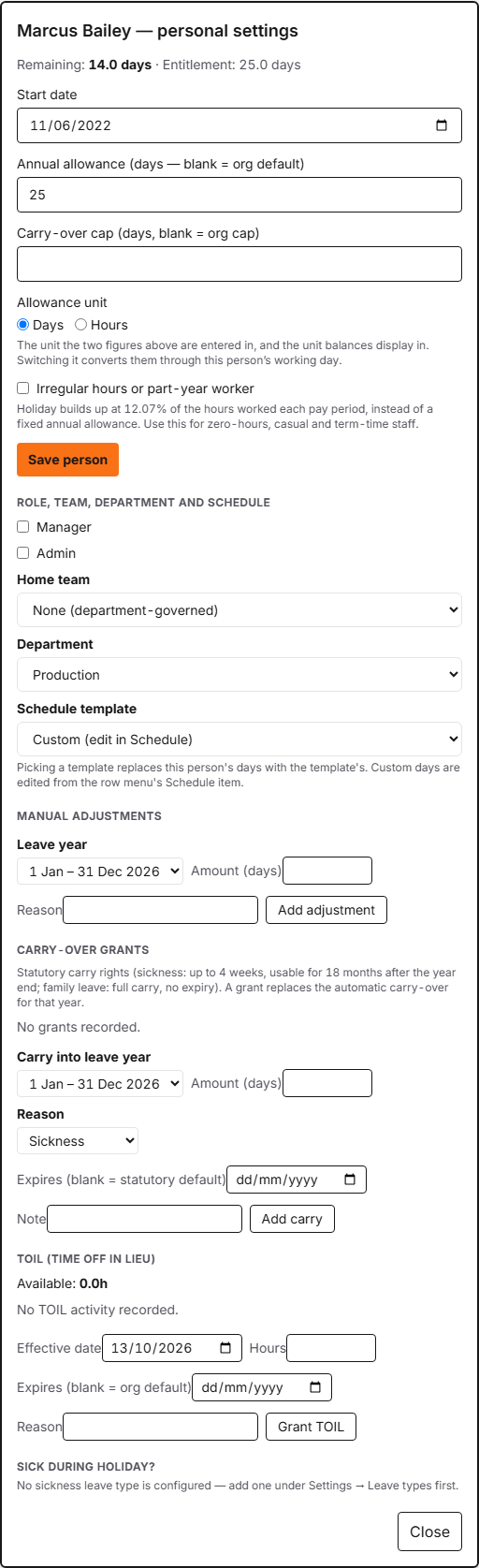
Controls
| # | Control | What it does | What it changes | Who |
|---|---|---|---|---|
| 1 | Start date # | The date this person joined. | Pro-rates their first leave year — someone who starts in September gets the part of the year they are employed for, not a full allowance. It is also what Leave in advance counts length of service from. | admin |
| 2 | Annual allowance # | This person's own allowance for the leave year. Leave it blank and they inherit the organisation default. | Recomputes their balance immediately. Read in the unit shown in the field label, which follows the Allowance unit setting below. | admin |
| 3 | Carry-over cap # | The most this person may carry into next year. Blank uses the organisation cap. | Applies at the leave-year boundary. Read in the same unit as the allowance above. | admin |
| 4 | Allowance unit # | Whether the two figures above are days or hours, and the unit balances display in. | Switching it converts both figures through this person's working day, so the entitlement they represent does not change. If they have no working schedule on file, a 7-hour day is assumed, so check the converted figures. | admin |
| 5 | Irregular hours or part-year worker # | Marks someone as zero-hours, casual or term-time. | Holiday then builds up at 12.07% of the hours worked each pay period instead of from a fixed annual allowance. | admin |
| 6 | Save person # | Writes the start date, annual allowance and carry-over cap. | Balances recompute for every leave year this person has. The allowance unit and the irregular-hours toggle save on change and do not wait for this button. | admin |
| 7 | Department # | Moves this person to a different department, or to none. | Saves immediately. If the destination has a default hours template that differs from this person's, a prompt offers to apply it — declining keeps their hours. | admin |
| 8 | Schedule template # | Puts this person on one of the organisation's working-hours templates. | Saves immediately and replaces their days with the template's. A template is one week, so this also replaces a pattern that repeats over several weeks, without asking first. Custom days show here as 'Custom' and are edited from the row menu's Schedule item, not by picking it. | admin |
This panel — opened by clicking a name in the People directory, or from the row’s ⋯ menu — holds one person’s settings. The allowance figures sit at the top; role, home team, department and schedule template follow. The organisation-wide defaults that everyone else inherits live in Settings → Leave.
The line at the top — Remaining and Entitlement — is the same figure this person sees on their own My leave page, so it is the quickest way to check what they are actually looking at.
Days or hours
Allowance unit is the control most worth understanding, because it decides how the two numbers above it are read, not merely how they are shown.
Set to Hours, an annual allowance of 218.4 means 218.4 hours for the year.
Set to Days, the same 218.4 would mean 218.4 days — so the unit is part of
the figure’s meaning, not a display preference.
Switching the unit therefore converts both figures for you, through this person’s working day, so their actual entitlement is unchanged.
There is a second Allowance unit control at the organisation level, in Settings → Leave, for the default everyone inherits — but it does not do the same job. Switching it there re-interprets the existing figures in the new unit instead of converting them, so the entitlement they represent changes. They are separate settings.
Entering hours for irregular-hours staff
Tick Irregular hours or part-year worker and an Irregular hours table appears lower down, with one row for each of the most recent twelve pay periods that have ended (earlier ones are in Reports → Holiday records). Type the hours worked and press Save; holiday builds up at 12.07% of them, rounded to the nearest hour.
Each period holds one figure. A row that already has hours shows them as Recorded, and its button reads Update:
- To correct a figure, type the right hours and press Update. The new figure replaces the recorded one — it is not added to it.
- To remove a figure, press Clear. The period goes back to 0h.
Nothing is erased. The earlier entry stays in Reports → Holiday records with the correction beside it, so the record shows what was changed.
A period filled in from approved timesheets has no box to type in. Use Recalculate on that row instead, after correcting the timesheet; it asks for a reason, keeps the existing credit and records a correction beside it.
Further down the panel
Below the schedule template the panel carries Manual adjustments (an amount in this person’s unit, a leave year picked from their own, and an optional reason), Carry-over grants (see Carry-over between leave years), a TOIL section when the TOIL feature is on, and Sick during holiday?, for reclassifying part of a holiday booking as sickness. Those controls are not listed above.
What you can’t do here
- You cannot see or change what this person has booked — use their bookings panel.
- You cannot change the leave year here; it is organisation-wide, on Settings → Leave under Leave year.
- A blank allowance is not zero. It means “inherit the organisation default”; enter
0for a genuine zero.