Settings → Leave
Every control in the organisation-wide leave panel — leave year, default allowance, accrual, carry-over, allowance unit, pay period and the notice rule.
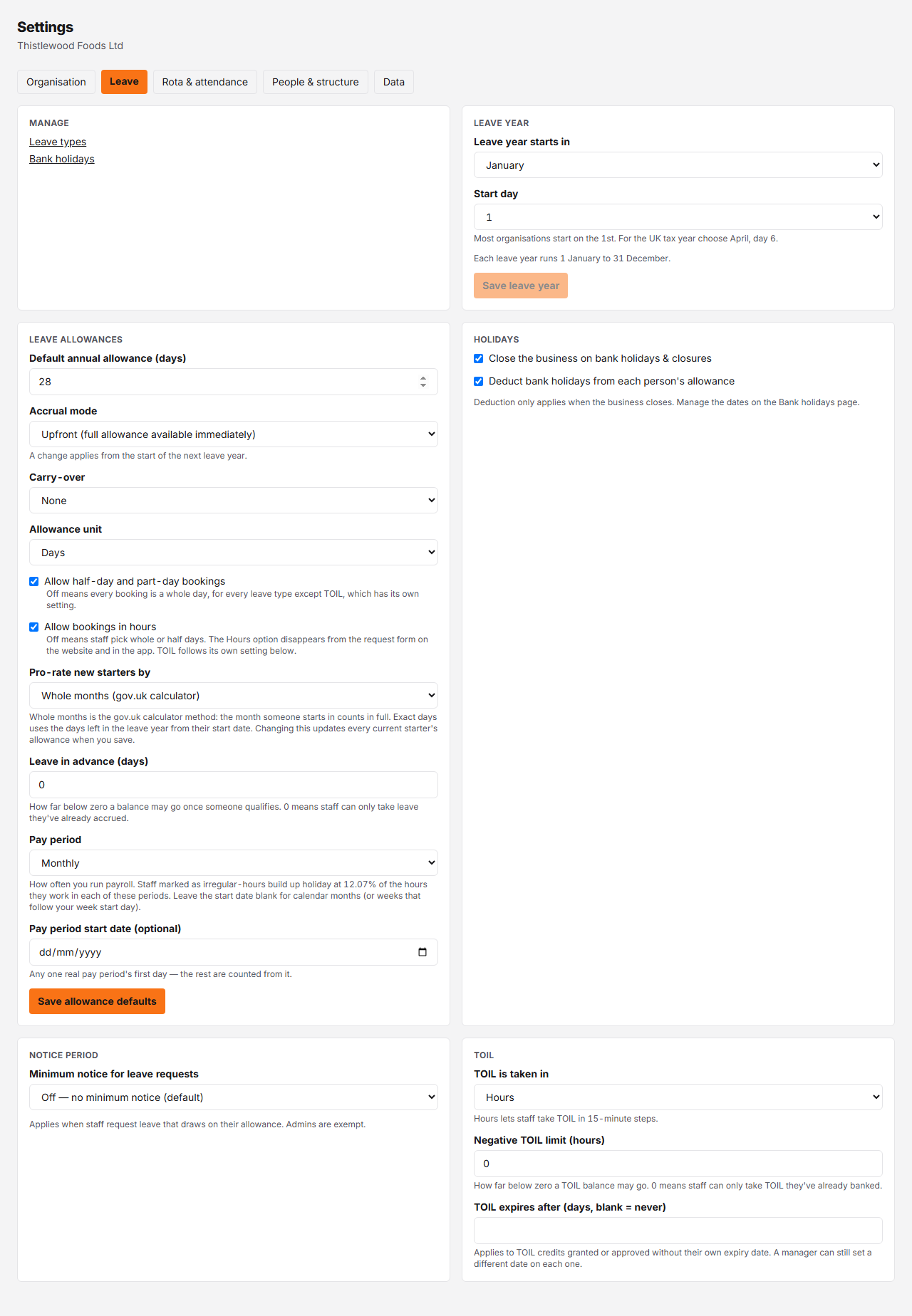
Controls
| # | Control | What it does | What it changes | Who |
|---|---|---|---|---|
| 1 | Default annual allowance # | The allowance every person inherits who has no personal figure of their own. | Read in the unit named in the field label itself, which follows the Allowance unit setting below. | admin |
| 2 | Accrual mode # | Upfront makes the whole allowance available immediately; Monthly accrues it across the year. | Once the organisation has deducting bookings or allowance adjustments, a change applies from the start of the next leave year, not the current one; before that it takes effect at once. | admin |
| 3 | Carry-over # | Whether unused allowance carries into the next leave year: None, Capped or Unlimited. | Choosing Capped reveals a Carry-over cap field, read in the same unit as the default allowance. | admin |
| 4 | Allowance unit # | Whether the default allowance and carry-over cap above are read as days or hours. | Re-interprets the figures above rather than converting them — see "Days or hours, organisation-wide" below. Switching to Days also rounds balances to half days. | admin |
| 5 | Pro-rate new starters by # | How a mid-year starter's first-year allowance is worked out: Whole months (the gov.uk calculator method, the default) or Exact days from start date. | Saves with Save allowance defaults and re-states every current starter's allowance the moment it does — see "Whole months or exact days" below. Leavers are always pro-rated by exact days. | admin |
| 6 | Pay period # | How often you run payroll: Weekly, Fortnightly, Four-weekly or Monthly. | Drives the 12.07% accrual pass for staff marked irregular-hours. Locks once holiday has accrued against it — see "Why the pay period is locked" below. | admin |
| 7 | Pay period start date # | Optional. Any one real pay period's first day; the rest are counted from it. | Blank means calendar months, or weeks that follow your week start day, instead. | admin |
| 8 | Save allowance defaults # | Writes the whole allowance block: default allowance, accrual mode, carry-over, allowance unit, the half-day and hourly toggles, the starter pro-rata method, leave in advance and pay period. | The bank-holiday toggles and the notice rule do not wait for this button — they save on their own. | admin |
| 9 | Close the business on bank holidays & closures # | Marks the organisation as closed on bank holidays and any other configured closures. | Saves immediately on change, no separate button. | admin |
| 10 | Deduct bank holidays from each person's allowance # | Deducts closed days from each person's allowance, so the allowance includes them. Off, the closed days do not come off the allowance. | Disabled while Close the business on bank holidays is off — deduction only ever applies on days the business is actually closed. Saves on change. | admin |
| 11 | Minimum notice for leave requests # | Off, Statutory (twice the length of the leave, WTR reg 15), or a Fixed number of days. | Saves immediately on change. Applies when staff request leave that draws on their allowance; admins are exempt. | admin |
| 12 | Manage # | Links out to the Leave types and Bank holidays pages that hold the underlying data. | Blackout dates / embargoes appears in this list only when the blackouts feature is turned on. | admin |
This card sets the organisation-wide defaults everyone inherits. One person’s own figures — start date, their own annual allowance, their own carry-over cap — live on their own People → Personal settings panel instead, and override whatever is set here.
Leave year
The Leave year card sets the day your leave year starts: Leave year starts in (the month) and Start day (the 1st for most organisations; day 6 of April follows the UK tax year). The line under them spells out the whole year, for example “Each leave year runs 1 November to 31 October”. Everyone in the organisation follows this one leave year.
It has its own Save leave year button and saves nothing else. Changing it re-cuts every balance into the new year: bookings and carry-over already made can land in a different year, so the figures shift. Set it before people start booking where you can.
Days or hours, organisation-wide
Allowance unit decides how the default annual allowance and carry-over cap above it are read — the same job the per-person Allowance unit does, but not the same behaviour.
Switching this control does not convert the figures above it — it
re-interprets them. Set to Hours, a default of 28 means 28 hours for the
year. Switch to Days and that same 28 is now read as 28 days: a different
entitlement, not the same one re-expressed in a new unit. The amber warning
under the select says so before you save, and switching to Days also rounds
existing balances to half days.
This is the opposite of the per-person Allowance unit control, which converts its two figures through that person’s working day so their actual entitlement is unchanged when the unit switches. Same label, two screens, opposite behaviour — check which one you are looking at before you rely on either.
Whole months or exact days
Pro-rate new starters by chooses the method for anyone whose start date falls inside the leave year. The two methods give different numbers.
- Whole months splits the leave year into twelve periods from its start date and gives a starter one twelfth for every period from the one they start in — the month they join counts in full, however late in it they start. This is what the gov.uk holiday entitlement calculator does, and how the Working Time Regulations describe first-year accrual (regulation 15A).
- Exact days gives the proportion of the leave year left on the start date, counted in days (regulation 13(5) read literally).
Someone on 218.4 hours who starts on 25 August in a January leave year gets 91.0 hours by whole months (5⁄12) and 77.2 hours by exact days (129⁄365). Hours allowances round up to the minute; days allowances round up to the half day either way.
The change is not deferred to the next leave year, because only starters’ annual figures move: saving it updates every current starter’s allowance at once. People who started on or before the first day of the leave year are unaffected, and leavers are always pro-rated to their last day by exact days, whichever method is chosen.
Leave in advance
Two fields in the Leave allowances card let staff book annual leave before it has accrued. Leave in advance is how far below zero a balance may go, read in the same unit as the default allowance (days or hours, up to 60, in halves); 0, the default, means nobody can go below zero. Once it is above zero, After (months’ service) appears: the length of service someone needs before they qualify, counted from the start date on their People → Personal settings panel, and judged on the day they make the request. It is whole months, up to 120; 0 means from their first day. Both save with Save allowance defaults.
A days figure converts through each person’s working day, so a limit of 2 days is 14 hours for someone on the 7-hour default day and 12 hours for someone on 6-hour days. Switching the allowance unit re-reads the number in the new unit, exactly as the carry-over cap does.
Someone with no start date cannot book in advance — the system has no way to judge their service — and the card says how many people that currently affects, with a link to People. Nor can anyone with a last day of employment on record: a leaver has no future accrual to repay it from. Staff and managers are bound by the limit; admins can still go past it with a reason, as they can past the allowance itself.
The in advance labels — on the request form’s preview, the allowance card and the approvals list — appear only while the setting is on and only for someone who qualifies. Anyone else below zero (after an admin override, say) shows a plain negative figure.
While the setting is on, a negative balance at the end of a leave year carries into the next one in every carry-over mode, and on from year to year until it is repaid: leave taken in advance is borrowed from next year, not written off. That includes any negative balance an admin override created before the setting existed. A carry-over grant recorded for a person still replaces the whole calculated figure for that year, debt included.
Why the pay period is locked
Pay period drives the 12.07% accrual calculation for anyone marked irregular-hours. Once holiday has accrued against the current grid, the API refuses a change to it and the tab shows “The pay-period grid is locked because holiday has already accrued against it.” Resending the same values is fine; only an actual change is rejected. There is no override in the UI — changing an already-accrued pay period would silently rewrite past accrual.
What saves when
This tab has five cards, or six when the TOIL feature is on. Manage is just a set of links — there’s nothing on it to save. The others don’t all save the same way:
-
Leave year (start month and day) only writes when you click Save leave year.
-
Leave allowances (default allowance, accrual mode, carry-over, allowance unit, the half-day and hourly toggles, pro-rata method, leave in advance, pay period) only writes when you click Save allowance defaults. Nothing above that button is saved until then.
-
Holidays (both bank-holiday toggles) saves each toggle the moment you change it — there is no button.
-
Notice period: the rule itself (Off / Statutory / Fixed) saves the moment you change it. The Days of notice required field that Fixed reveals saves on blur instead, once you click or tab away from it.
-
TOIL: the taken-in select saves on change; the limit and the expiry save on blur.
What you can’t do here
- You cannot set one person’s allowance — that is People → Personal settings.
- Notice rules do not apply to admins.
- Deduction only applies on days the business is actually closed.
- Re-running the setup wizard rewrites the Allowance unit and the half-day and hourly toggles from its “How is leave booked?” question — it does not ask again.
TOIL
In the Leave allowances card, above the pay period, Allow half-day and part-day bookings decides whether staff can book anything shorter than a whole day on every other leave type — TOIL always follows its own TOIL is taken in setting below instead, regardless of this toggle. It saves with Save allowance defaults, is shown on and locked while the Allowance unit is Hours (an hours-based allowance always books part days), and was previously set only in the setup wizard.
Beneath it, Allow bookings in hours decides whether those part days can also be a start and end time rather than a morning or an afternoon. On (the default) is what every organisation had before this toggle existed: the request form offers Days or Hours on every ordinary leave type, on the website and in the app. Off keeps mornings and afternoons but removes the Hours option everywhere, and the server refuses a timed request that an older app build might still send. It only appears while the half-day toggle is on — with that off every booking is a whole day and there is nothing left to decide — and it saves with Save allowance defaults too. It is independent of the Allowance unit: an organisation that tracks allowances in hours can still restrict staff to half days. In the setup wizard, Half days sets it off and Half days and hours or Hours set it on.
A TOIL card appears on this page only while the TOIL feature is switched on. It has three fields. TOIL is taken in (Hours, Half days or Full days — Hours by default) decides how finely staff can book the TOIL leave type, independently of the half-day toggle above; it saves the moment you change it. Negative TOIL limit (hours) is how far below zero a balance may go, in quarter-hour steps; 0, the default, means staff can only take TOIL they have already banked. It saves as soon as you leave the field. TOIL expires after (days, blank = never) also saves on blur and sets the default use-by date for credits granted, or approved from a staff request, without a date of their own; a manager can still put a different date on an individual grant, and credits that already exist are never changed.