Pay rates and labour cost
Switch on labour cost, enter pay rates, and read the labour cost figures and weekly budget on the Rotaleave rota.
Updated 13 October 2026
Labour cost puts a price on the shifts you plan. Admins record a pay rate for each person, and managers and admins then see what the week’s rota is expected to cost, with an optional budget to compare it against. It is switched off until an admin turns it on.
Switch it on
An admin opens Settings → Organisation → Features and turns on Labour cost vs sales, then presses Save. The figures appear on the rota, so the rota must be available to you as well. Until the switch is on, no pay rates or cost figures appear anywhere.
Enter a pay rate
Only admins can add or remove pay rates. On the People page, open the row menu for a person and choose Pay rates. The menu item only appears for admins, and only once the switch above is on.
The dialog lists the person’s rate history. To add a rate, choose:
- Kind: Hourly (an amount in £ per hour) or Annual salary (an amount in £ per year).
- Amount, Effective from (a date) and an optional Note, then Add rate.
A rate applies from its date until a later one replaces it, so a pay rise is a new row with the new date. You cannot edit or delete a rate that has already started: Remove works only on a future-dated rate, and the dialog says “Only a future-dated rate can be removed — add a new rate instead of editing history.” Managers do not get the Pay rates menu item.
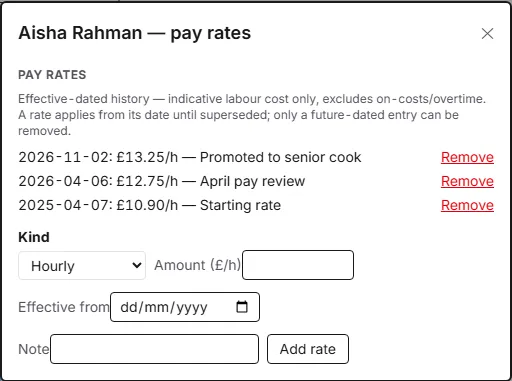
Costs are worked out when the rota is opened, never stored. Adding a rate with an earlier date therefore reprices weeks you have already published.
How a salary becomes an hourly figure
Each shift is priced at the person’s hourly rate for the shift’s date. For a salaried person, the annual amount is divided by their contracted weekly hours multiplied by 52, using the working hours on their schedule at that date. A person with no schedule on file is treated as working 35 hours a week. The result is rounded to the nearest penny.
The labour cost on the rota
When labour cost is on, managers and admins see a bar above the rota grid reading Labour this week with the total for the week. Staff never receive these figures. The bar is hidden when nobody in the organisation has a pay rate that has started by the end of that week, and it is left out of printed rotas.

The total adds up the cost of every assigned shift for the week, draft or published: the shift’s paid length (the unpaid break is already taken off) multiplied by each assignee’s hourly rate. It is indicative, and the bar says so: “indicative — excludes on-costs/overtime”. It prices scheduled shifts, not clocked hours. Unfilled places on a shift cost nothing, and leave is not counted.
Two pages show it slightly differently:
- Newer rota page (the person-by-person grid managers and admins see by default): the bar above the grid only.
- Earlier rota page (shown while an organisation’s newer rota page is switched off): the same bar, plus a cost for each day above its column and a cost on each shift card. An admin on this page also sees Add pay rates to see labour cost →, which links to People, while no rates exist.
The app gives managers no way to open anyone’s rate history, but they do see these cost figures. On the earlier rota page, the cost on a shift with one person assigned is that person’s hourly figure multiplied by the shift’s paid hours, so a manager can work out the rate from it. Bear this in mind before switching labour cost on.
The under-estimate note
If anyone assigned that week has no pay rate on file for the shift’s date, they count as £0 and the total is marked with an asterisk, with an amber under-estimate — some assignees have no pay rate tag. The same asterisk appears on any day or shift containing such a person. Add the missing rate, with an effective date on or before the shift, and the note clears.
Set a budget
Select Budget on the bar. The dialog is titled Labour budget followed by the department you are viewing (or All departments). Managers and admins can use it. Choose a Target type:
- Fixed weekly £: enter a Weekly budget (£). The bar then shows / budget with how far the week is over or under, and on budget when equal. In a shorter changeover week the budget is cut in proportion to its days.
- % of sales: enter Target (% of sales) and This week’s sales (£). The bar shows labour as a percentage of sales against your target. Sales are entered week by week; until you enter them it shows sales not entered for this week.
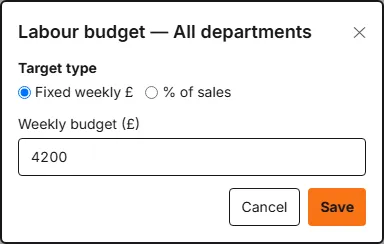
A budget starts on the week you are viewing and carries forward to later weeks until you save a different one. Choosing a department in the rota’s department dropdown first sets a budget for that department; otherwise it applies to the whole organisation.
Payroll
Pay rates do not feed the payroll export, which carries hours and days, not money. Nothing in Rotaleave multiplies timesheet hours by pay rates. Treat labour cost as a planning guide, not a payroll figure.
Pay rates are personal data. They are removed when a person’s account is erased.