Build and publish a rota
Plan shifts week by week in Rotaleave — a row per person, working patterns and repeating templates, and publishing with notifications.
Updated 13 October 2026
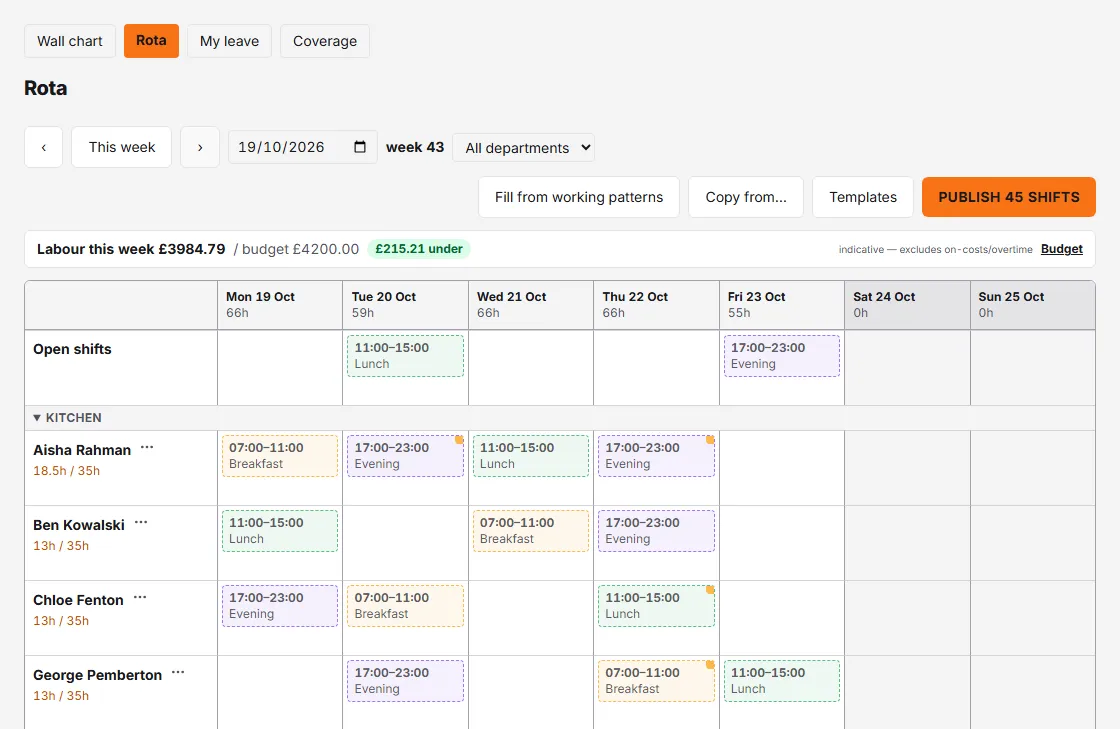
The Rota page gives managers and admins a week grid. Use the ‹ › arrows, This week or the date box to move between weeks, and the department dropdown (it appears once your organisation has departments) to focus. Each week is draft until you publish; published weeks are what staff see on their Rota page. Rota scheduling is enabled per organisation; if you see “Rota scheduling isn’t enabled for your organisation”, contact us. Read more about the module on the rota scheduling feature page.
Add shifts
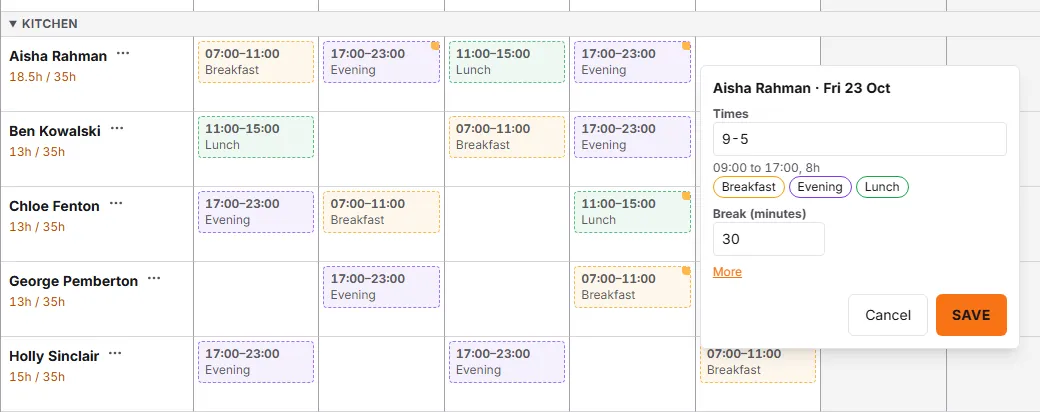
The grid has a row for each person and a column for each day. Click the cell for the person and day you want:
- Type the times —
9-5or8.30 to 4.30, for example — and press Enter. The line under the box shows how they were read before you save, and marks a shift that runs past midnight as (overnight). - Set Break (minutes). More adds notes, People needed and a colour.
- If you have shift templates, each one appears as a button under the times box — click it to fill in that template’s times, break and colour. Templates are managed at Settings → Rota & attendance → Shift templates.
Someone you have invited but who hasn’t joined yet shows Invite pending and can still be given shifts. Under each name is the paid time they are rostered for the week (breaks taken off) against their contracted hours; click it to see the shifts it adds up. For someone whose working pattern repeats over more than one week, the contracted figure is the pattern’s hours for the week on screen — 14h one week and 20h the next, say. Someone with no working pattern shows 35 hours.
The Open shifts row holds shifts nobody is on yet — click a cell there to add one. It is a planning row; making a shift something staff can claim is a separate step, covered in open shifts.
If you use areas (an admin sets up the first one under Settings → Rota & attendance; after that the Area list in the shift box also has + New area, for managers too), a shift can carry one, and a People / Areas switch appears above the grid. In the Areas view a new shift goes into an area, and Rotaleave then asks who should work it, showing each person’s availability.
If Labour cost vs sales is switched on (Settings → Organisation → Features) and people have pay rates (the ⋯ menu on a person’s row in People → Pay rates), a bar above the grid shows Labour this week £… to managers and admins. The Budget button sets a target for the week on screen onwards — a fixed weekly amount, or a percentage of that week’s sales — for the department you have selected, or for all departments. The figure is indicative: it excludes on-costs and overtime, and it is marked as an under-estimate if someone on the rota has no pay rate.
Leave on the rota
A day someone is off shows in their row: the leave type, and All day, Morning, Afternoon or the times. A request that is still waiting for approval has a dashed outline and says pending. Under their hours, Leave: lists the days of approved leave that week, which is usually why the hours fall short of contracted. It is the same leave the wall chart shows you, on the days the person normally works; where you may only see that someone is away, the mark says Away.
Leave never stops you adding a shift. A shift on a day of leave gets a small amber corner as a warning, and Fill from working patterns leaves out anyone on approved leave that day.
To book leave without leaving the rota, click the person’s cell for that day and choose Book leave instead, or use Book leave for … in the ⋯ menu beside their name. The usual request form opens over the rota with the person (and the day, from a cell) filled in. When it is saved the grid shows it.
Click a holiday on the grid to see the booking and its status. Amend opens it in the request form (saving replaces the booking, and sends it for approval again unless you are an admin), and Cancel booking removes it, with an optional reason. Either way the grid updates.
Change, move and copy shifts
- Click a shift to change it. Move or copy sends it to another person or day, or to Open shift; Delete removes it.
- Or drag a shift to another cell; hold Shift as you drop it to copy instead of move.
- The ⋯ beside a name has Fill …‘s week from their pattern, Copy …‘s week to… for other people, and Book leave for ….
Fill a whole week
- Fill from working patterns creates the usual shifts of everyone on the grid from their work schedule. It skips days your organisation is closed, days someone is on approved leave, days they already have a shift, and anyone with no working pattern. For a pattern that repeats over more than one week it uses the right week of the pattern, so alternate weeks fill differently.
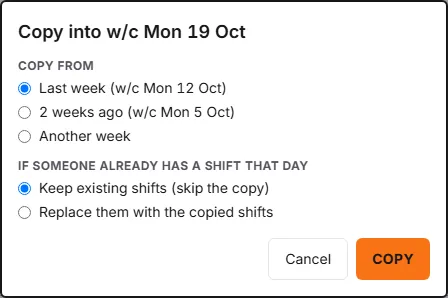
- Copy from… copies last week, the week before, or any week you pick, into the week you are looking at. You choose whether people who already have a shift that day keep it or have it replaced. It copies every department’s shifts even if you are viewing one, and it only fills weeks that aren’t published yet (the button is not offered on a published week).
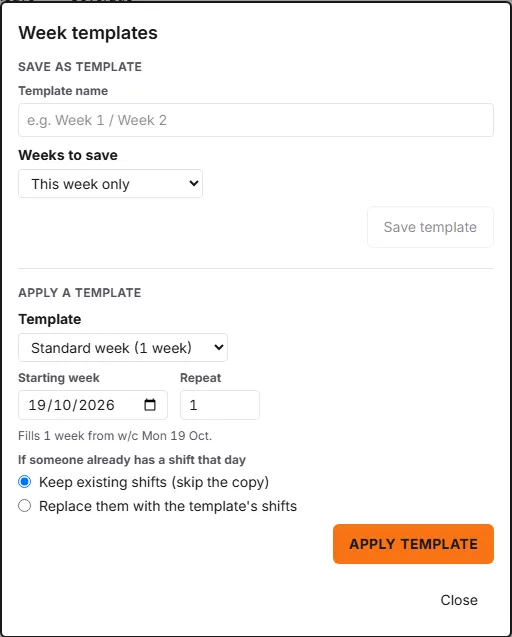
- Templates saves this week — or up to four weeks starting from it — as a named template, and applies a template from a starting week, repeated up to 13 times; weeks that are already published are left alone. That is how to set up a rota that repeats every two weeks: build the two weeks once, save them as one template, then apply it. An admin can rename or delete saved templates under Settings → Rota & attendance → Week templates.
Publish
Click Publish N shifts (it is greyed out while the week has no shifts). The dialog summarises the whole week — days that are short-staffed, conflicts, and a closing line: “No gaps — ready to publish.” or “N gaps remain — publish anyway?”. You can publish with gaps; it’s your call.
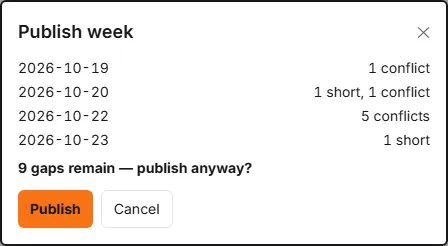
On publish, everyone whose shifts for that week are new or different since they were last told is emailed — the toast counts them: “Published. 9 people notified.” Publishing again with nothing changed emails nobody. Changing a published week asks you to confirm with Edit anyway, and anyone whose own shift changes is emailed.
If your Rota page has an + Add shift control under each day instead of a row per person, your organisation is on the earlier rota page — contact us to move to this one.
Which day the week starts
Weeks start on a Monday unless an admin changes it under Settings → Rota & attendance → Week starts on — see Settings → Rota & attendance. The rota, timesheets, labour budgets and the weekly who’s-off email all follow that day.
- Before you’ve published a rota or recorded a timesheet, the new day applies to every week straight away.
- Once weeks are in use, you choose a future date on the new day. Weeks before it keep their old boundaries, and the week just before the change is shortened so the new pattern starts cleanly — Rotaleave shows you exactly which days that short week covers before you save.
What staff see
Staff open the same Rota page and get their own view: a four-week window of their own published shifts grouped by week, plus (if shift swaps are switched on) open shifts to claim and their swap requests. It opens on the current week, and the ‹ › arrows above it move the window a week at a time — the heading names the span it covers (“7 Sep – 4 Oct 2026”, with “This week · weeks 37–40” under it), so staff can look well past the next few days or back at a week that has gone. Week numbers only appear when your weeks start on a Monday (and not across a year end); otherwise it reads 4 weeks.
Draft weeks are never in it. With nothing published across the four weeks they are looking at, they see “No published shifts between 7 Sep – 4 Oct 2026” and the hint “Your manager publishes each week — use ‹ and › to look further ahead or back.”