The organisation chart
What the Organisation Chart Tree shows, who can see it, what admins can change from it and how your structure decides who approves leave.
Updated 13 October 2026
The Organisation Chart Tree draws your whole organisation as one tree: departments, the teams inside them, their managers and the people. It is the one place that shows your structure and who approves each person’s leave together. This page is the overview; for every control, see the Organisation Chart Tree reference.
Where it is and who can see it
Go to People and open the Organisation Chart Tree tab. Admins always see the whole organisation. Employees cannot open it.
Managers can see it only if an admin allows it. In Settings → People & structure, the Organisation Chart Tree for managers setting has three choices, and it starts on the first:
- Admins only
- Their own area: below, beside and above them
- The whole organisation
A manager always sees the chart read-only, and under the middle choice only their own area. Under that middle choice, a manager who manages nothing sees “You don’t manage a team or department yet.”
What it shows
At the top is Organisation, with the rule for who approves leave across the whole organisation. Below it are the departments, with a child department drawn under its parent department. Each department holds its teams, and each team holds its people. Anyone in no department sits in a No department card.
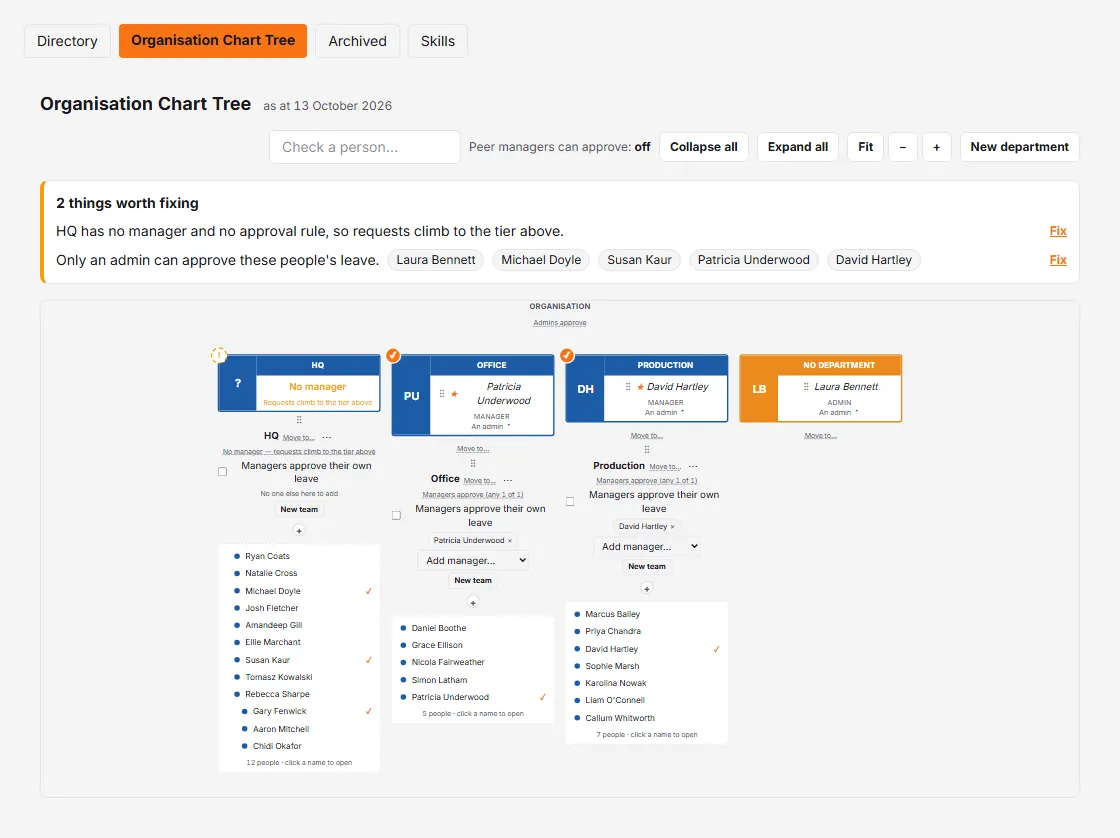
- Department and team cards show the approval rule, the managers (as name tags) and, for a department, the switch Managers approve their own leave.
- Each person shows their role and, under it, a line naming who approves their leave today. Click the ▸ beside that line for the full chain.
- Things worth fixing, if any, lists problems such as a team or department with no manager, with people’s names you can click to find them.
- Check a person… finds someone by name, and Collapse all, Expand all, Fit, − and + help you move around a large tree.
What an admin can change
Admins can change things straight from the chart. Each change saves at once; moves, manager changes and the self-approval switch offer Undo. Creating, renaming and deleting do not.
- Move people, teams and departments. On a screen at least 1024 pixels wide, drag by the grip handle. On a smaller screen, or from the keyboard, use the Move to… menu instead. Dropping a person on a team makes it their home team. Dropping a team on a department moves the team and its members. Dropping a department on another makes it a child of that one; a move that would create a loop is refused.
- Make someone a manager. Use the star beside a person, or Add manager… on a card. Remove a manager with the × on their tag. A new manager is named as an approver straight away, but they can only approve requests if their own role is manager or admin; making someone a manager here does not change their role.
- Change the approval rule. Click the rule shown on the organisation, a department or a team to open Approvals for that unit, where you can set a policy or Remove policy.
- Add and delete. New department (top right) creates a top-level department. New team is on each department. Delete is in a card’s menu. Deleting a department tells you what moves first; deleting a team moves its people to No team.
- Rename a department in place. Teams cannot be renamed.
How the structure decides who approves leave
A leave request goes to the managers of the person’s team, then their department, then each department above it, then the organisation’s admins. A policy set on a unit replaces its managers. Because the line under each person naming their approver is worked out from the rules as they stand, it updates after every change. The detail, including the order and exceptions, is in Approval rules, and Departments and teams covers the settings behind each unit.