Organisation Chart Tree
Every control on the Organisation Chart Tree — search, warnings, department and team cards, manager stars, approval rules and the Move to… menu.
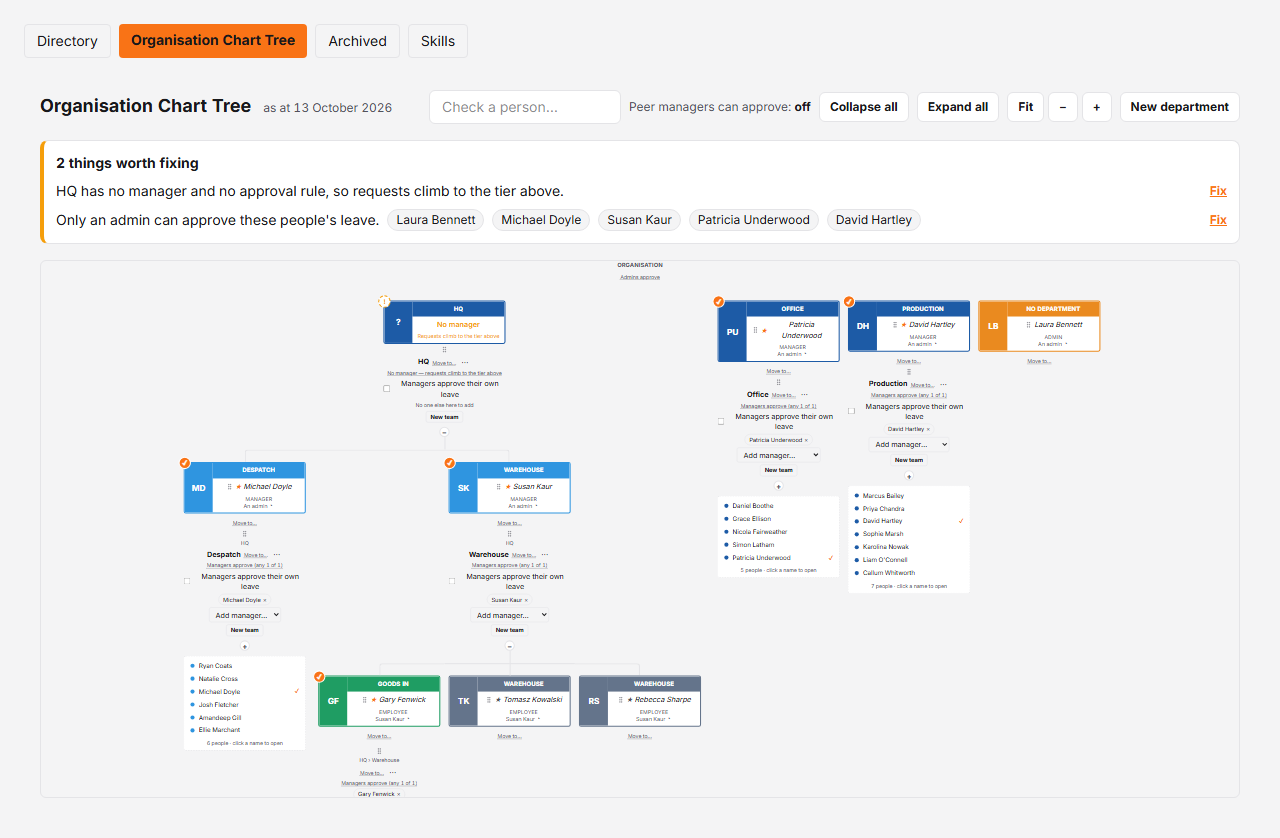
Controls
| # | Control | What it does | What it changes | Who |
|---|---|---|---|---|
| 1 | Check a person # | Type two or more letters of someone's name to list up to twelve matches; picking one opens every branch above them and highlights their name in the tree. | Nothing about the organisation — it only moves the view. The branches it opened stay open until you collapse them again. | admin, manager |
| 2 | Fit, − and + # | Moves the view around a chart that is wider than any screen. Fit puts the whole organisation on the canvas at once; − and + zoom out and in about the middle of it. A mouse wheel or a trackpad pinch over the chart does the same, about the pointer, and dragging the empty canvas moves it — on a touchscreen, drag the chart itself. | Nothing about the organisation, and nothing anyone else sees. The chart is fitted when the page opens and again whenever Collapse all or Expand all changes its shape; after that the view stays where you put it until you press Fit. | admin, manager |
| 3 | Things worth fixing # | Lists what would make a leave request go somewhere unhelpful — a team or department with no manager and no policy, a department that lets its managers approve their own leave but has no manager, people nobody is set up to approve (so any manager, or only an admin, can), an approval rule that names someone no longer active, a manager who is one only because a deleted rule made them so. Each row names up to six of the people affected. | Nothing on its own. Clicking a name reveals that person in the tree; the Fix link goes to the settings screen that resolves it, and is shown to admins only because every one of those screens is admin-only. | admin, manager |
| 4 | Department card # | Everything about one department: the chain of departments above it, its name, its approval rule, its managers, and the ⋯ menu holding Rename and Delete. | It is also a drop target. A person or a team dropped anywhere on it moves into this department; a department dropped on it becomes a child of it. Dropping a department onto one of its own descendants is refused — the department's tile shakes and the message reads "That would create a loop." The server refuses the same move independently, and says the same thing when it is the one that catches it. | admin, manager |
| 5 | Team card # | The same block for one team: its department breadcrumb, its approval rule, its managers, and a ⋯ menu. The menu offers Delete only, because nothing in Rotaleave renames a team. | A person dropped on it joins the team and it becomes their home team, which is what decides whose policy applies to their requests. Delete says how many people move to No team first; it never deletes anybody. | admin, manager |
| 6 | Manager star (★) # | Makes this person a manager of the team or department their row sits in, or takes it back. Filled means they manage it. | Approvals, immediately — a starred person becomes an approver for everyone in that unit, so the approved-by lines around them are refetched and change. If they were not on the team's member list yet, starring adds them to it. Both directions can be reversed with Undo, which puts the manager flag back the way it was. | admin |
| 7 | Approval rule # | Says how leave is approved for the organisation, a department or a team — "Managers approve (any 1 of N)", a named multi-level "Policy: …", "Admins approve", or "No manager — requests climb to the tier above". | For an admin it is a button that opens the rule editor for that unit alone, with a Remove policy option that drops back to whatever the tier above decides. Saving refetches the whole chart, so every approved-by line updates at once. A manager sees the wording and no button. | admin, manager |
| 8 | Managers approve their own leave # | Lets this department's managers approve their own requests instead of sending them up a tier. | Only this department. Leave it off and a manager's own request climbs to the department or organisation above; there is no equivalent switch on a team. A manager viewing the chart sees the line only when it is on, and cannot change it. | admin, manager |
| 9 | Approved by # | The line under each person naming who approves their leave today, with a ▸ that expands the full chain — every level, and any rung that was skipped and why. | Nothing — it is read-only, and it is computed from the live rules rather than stored, so it is the honest answer after any edit. It is blank for anyone whose chain is outside a manager's own area. | admin, manager |
| 10 | New team # | Adds a team inside this department. Type a name and press Enter; Escape cancels. | Creates an empty team with no manager, so until you star someone in it its requests climb to the department above — the warnings list will say so. | admin |
| 11 | New department # | Adds a department at the top level. Type a name and press Enter; Escape cancels. | Creates it empty and unparented. Drag it onto another department afterwards to nest it, or drag people and teams onto it to fill it. | admin |
| 12 | Move to… # | The menu that does what dragging does, for people who are not using a mouse. It lists every department, team, No department and Top level this thing could legitimately move to. | Exactly what the equivalent drag would change, through the same code — including the Undo. Destinations that would change nothing, or that would create a loop, are simply not in the list. | admin |
This is the whole organisation drawn as one tree, from the organisation itself down through departments, their teams, and the people in them. It is the only screen that shows the shape of the business and its approvals together, which is why every card carries its approval rule and every person carries the line naming who approves them.
Admins can rearrange it. Managers get it read-only when Settings lets them in at all — the same tree, pruned to their own area, with every state visible and every control absent.
Getting around it
A real organisation is far wider than any screen — a chart of twenty-odd people, fully expanded, is several thousand pixels across — so the tree is drawn on a canvas you move around rather than in a strip you scroll.
It is fitted when the page opens: the whole organisation, shrunk to whatever it takes to get it on screen at once, which is the view that answers “what shape is this business?”. From there:
- Wheel over the chart, or pinch on a trackpad, to zoom about the pointer — whatever is under it stays under it
- Drag the empty canvas to move around; on a touchscreen, drag the chart itself, and pinch with two fingers to zoom
- Fit returns to the whole organisation; − and + step out and in
- Collapse all and Expand all re-fit as well, since the point of both is to see the shape they produce
The view is yours alone: it is not saved, not shared, and it changes nothing about the organisation.
Moving people, teams and departments
On a screen 1024px or wider, drag by the grip handle that appears on a person’s row or a card’s header (press and hold for a moment first):
- a person onto a team joins them to it and makes it their home team; onto a department puts them in it with no team; onto No department takes them out of both
- a team onto a department moves the team and everybody in it; onto the Organisation heading at the top it becomes a team with no department
- a department onto another becomes a child of it; onto the Organisation heading it returns to the top level
Below 1024px there is no drag at all — a phone gets Move to… instead, and so does anyone on a keyboard at any width. It offers the same destinations and makes the same change.
Dropping something back where it already is does nothing rather than making a round trip, so a short accidental drag cannot quietly demote a manager.
Undo
A move, a manager star and the self-approval switch each apply immediately and offer Undo in the message at the bottom of the screen. Undo runs the change backwards — including restoring a manager flag the move carried — so it genuinely puts things back rather than approximating it.
Creating, deleting and renaming a department are the exception: they apply the same way and report the same way, but they carry no Undo. That is why the delete confirmation counts out what is about to move before you agree to it.
If a change fails on the server, the chart is reloaded so that what you see is what really happened, and the message says why the change did not stick — in the server’s own words where they are clearer than ours. If that reload fails too, the message says so rather than claiming the chart is up to date.
Why an “approved by” line changed
Every one of those lines is worked out from the rules in force at that moment — the person’s team policy, then their department, then any department above it, then the organisation — never from a label stored against the person. So starring someone as a manager, editing a rule, deleting a team or moving somebody between departments can all change who approves whom, and the whole chart is refetched after each so the lines and the badges can never disagree.
Expand the ▸ beside a line to see the full chain, including any level that was skipped and the reason.
What you can’t do here
- Rename a team — nothing in Rotaleave does; the team ⋯ menu offers Delete only. Departments rename in place.
- Create a department inside another in one step — New department always creates at the top level; drag it where it belongs afterwards.
- Edit anything as a manager. Managers get the tree read-only: no drag, no stars, no rule editing, no self-approval switch and no ⋯ menus.
- Open a person’s Personal settings. Names are not links here; that panel lives on the People directory.
- Reach people outside your own area, as a manager. Settings → People & structure → Organisation Chart Tree for managers decides how much a manager sees — Admins only, their own area: below, beside and above them, or the whole organisation — and the server prunes everything else out of the payload before it reaches the page.