The practice company and guided tour
Try Rotaleave in a pretend company called Oakford Mill: how admins enter and leave it, switch person, take the tour, and what is kept.
Updated 13 October 2026
The practice company is a pretend organisation with pretend staff, so an admin can try Rotaleave before setting up the real thing. It is called Oakford Mill. Nothing in it touches your own organisation.
Who gets it and how you enter
Admins get it. Managers and employees do not. It has 20 invented people in four departments (Office, Production, Warehouse and Retail), with leave requests, a published rota, coverage rules and clock-in records already in place, dated around today.
- The first time. An admin who has not yet seen the introduction is taken into the practice company automatically after signing in. A window then offers Take the 5-minute tour or Skip, just let me explore. Either choice marks the introduction as seen, so you are not sent in automatically again.
- Later. Open the account menu (your avatar, top right) and choose Sandbox mode.
- If it fails to open, you see “Couldn’t open the practice company just now — try again from your name menu.”
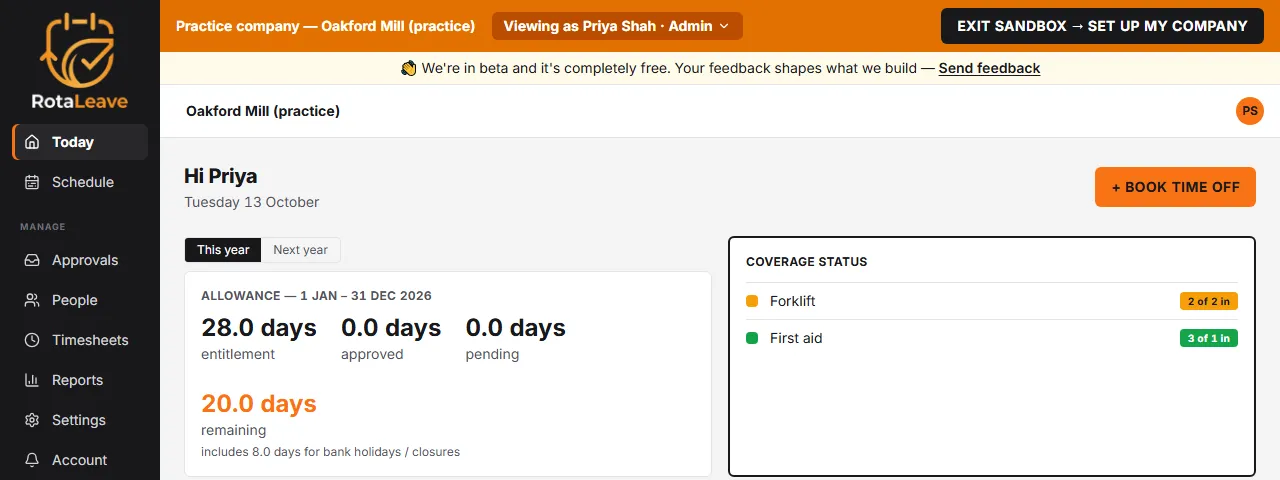
Inside, an amber strip across the top reads Practice company — Oakford Mill (practice). Every feature that an organisation can switch on for itself is switched on here.
Leave the practice company
Click Exit sandbox → set up my company in the amber strip, or choose Exit sandbox in the account menu. You return to your own organisation’s home page.
See it as a manager or an employee
The amber strip has a button reading Viewing as followed by a name and role. Open it to get a View as list grouped under Admin, Managers and Employees, and pick anyone. The page reloads on the home page as that person, and you see what they see. You start as Priya Shah, the admin.
The tour
Start it from Take the 5-minute tour, or any time from the account menu with Replay the tour. It has 14 steps. Every step has a close cross, every step except the last has Next and Skip tour, and steps 2 to 13 also have Back. It walks through:
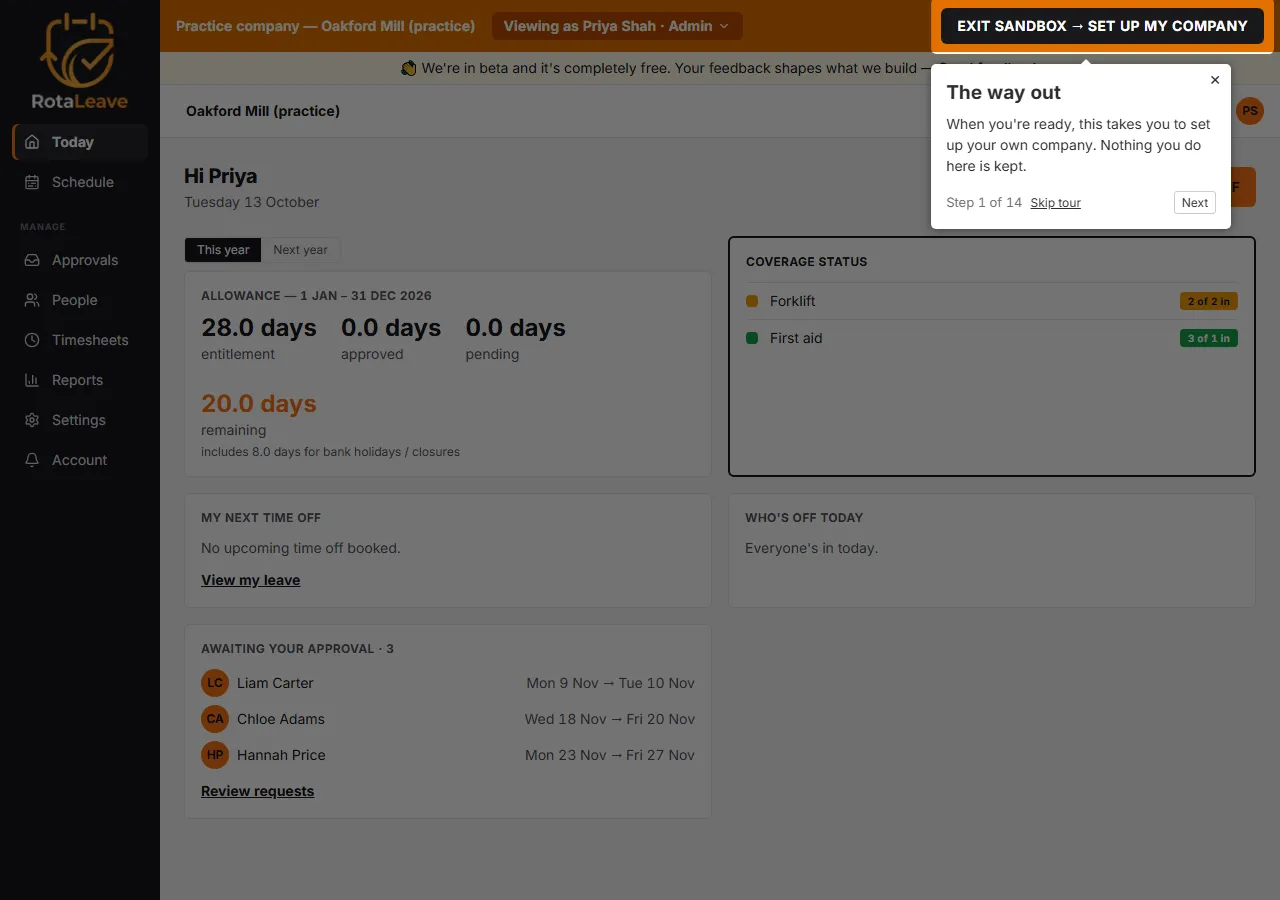
- The exit button and the person switcher.
- The navigation rail and the Today page.
- The wall chart.
- Requesting time off, as Tom, an employee. It asks you to submit a request for two days next month.
- Approving that request, as Marcus, Tom’s manager.
- Building a rota (next week has two open Late shifts) and the coverage board (one day next week, normally Tuesday, is short).
- People, Timesheets, the leave settings and the Features settings.
The tour switches person by itself for the request and approval steps (4 and 5 in the list above), then back to the admin, and reloads the page each time. The last step offers Keep exploring or Exit and set up my company.
What is switched off
- On People, Import / Migrate and Invite person are greyed out (“Not available in the practice company”). Resending invites, reinstating people and the bulk actions on the People page are refused by the server too.
- On Integrations, connecting Slack, Teams or a calendar is unavailable.
- Billing is hidden, and so are Change password, the kiosk PIN section and the option to close the organisation.
- Rotaleave suppresses the practice company’s emails, and the invented people have addresses that cannot receive mail.
What is kept
Nothing you do in the practice company reaches your real organisation, and none of it is kept for good:
- Signing out deletes the practice company. So does changing or resetting your password.
- Exiting does not delete it. If you go back within 2 hours of its last use, you pick up where you left off. After longer than that, entering builds a fresh one and your earlier changes are gone.
- A practice company nobody has used for 30 days is removed by a scheduled clean-up.
For setting up your real organisation, see Set up your organisation and Invite your team.