Import staff from a CSV
Add your whole team from a spreadsheet with the staff CSV template: the columns, how working days are set, the preview, and what a re-import overwrites.
Updated 13 October 2026
If your people live in a spreadsheet rather than another leave product, the staff CSV import brings them in together: one row per person, a preview, then one click. It is separate from the importers for Timetastic, Ento and the other leave products, which also bring in leave history. The staff CSV only handles people, and the departments and teams they sit in.
Where it is and who can use it
Only admins can use it. Open Settings → Data → Import / Migrate (the Import / Migrate button on the People page goes to the same screen) and find the Staff CSV import card. It also appears on the Your people step of the setup wizard.
Download the template
Click Download CSV template. The file, rotaleave-staff-template.csv, has three example rows (a full-timer on a template, a three-day part-timer and a mornings-only worker). Replace or delete them before importing, with the same headings. Headings are not case-sensitive, and a bracketed suffix after a heading is ignored.
| Column | What it accepts |
|---|---|
| First name, Last name, Email | Required columns; the file is refused if any heading is missing. The email identifies the person and must be valid and appear only once in the file. |
| Role | employee, manager or admin. Blank means employee. |
| Start date | YYYY-MM-DD or DD/MM/YYYY. Blank means none. |
| Annual allowance | A number of zero or more. Blank means the organisation default applies. It is stored in your organisation’s allowance unit (days or hours). |
| Department, Team | Names. A name that does not exist yet is created. A team can be linked to a department by putting both on the row. |
| Schedule template | The name of an existing working-hours template. |
| Mon to Sun | Full, AM, PM or Off. |
How working days are set
Each person’s pattern comes from the first of these that applies:
- The Schedule template column, if filled in. If the day columns are also filled in, they are ignored and the preview warns you.
- The Mon to Sun cells, if any of the seven is filled in. Once you fill in one, a blank day counts as off.
- The department’s default template, if the person’s department has one.
- Monday to Friday, full days.
The template name must match an active template that already exists. The import never creates templates; create them first under Settings → People & structure → Working-hours templates. The day columns set which days and half days someone works, not clock times; set start and finish times afterwards under People → the person → Schedule. A schedule template, whether named in the file or taken from the department’s default, brings its own start and finish times with it.
Preview, then import
Choose the file under Staff CSV file, then click Preview. Nothing is written at this stage. You get a table of what would be created, updated or skipped, and any warnings in amber.
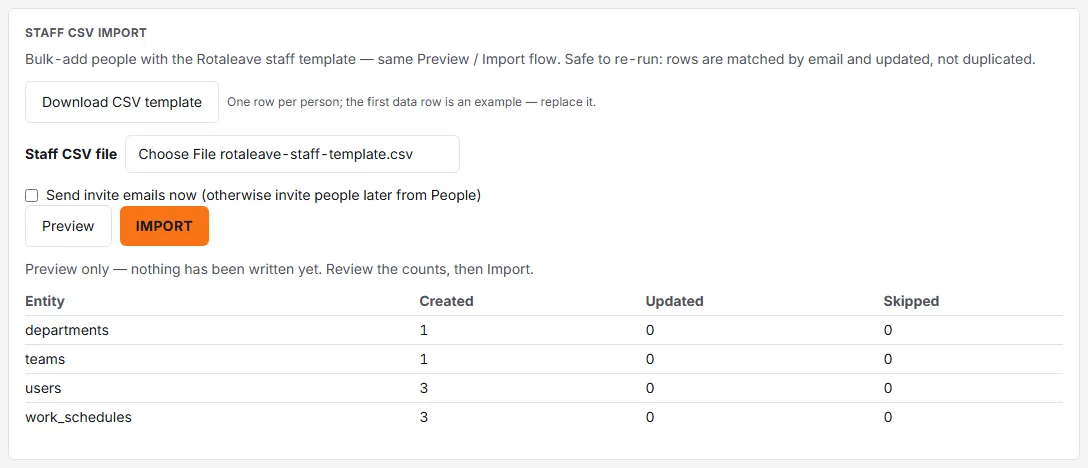
If a row has a problem, a red list (“Fix these rows and re-upload — nothing has been imported”) names the row and the fault, and Import stays disabled. Row numbers match your spreadsheet, with the heading as row 1. Rows are rejected for an invalid or repeated email, an unknown role, an unreadable date, a bad allowance, a day cell that is not Full, AM, PM or Off, an unknown schedule template, or an email that belongs to an archived person. Fix the file and upload it again.
Warnings do not block the import. They include day columns ignored because a template was given, and a team listed under more than one department (the first is kept).
What the import does
Click Import and everything is applied in one go; if it fails, no changes are applied. New people are created in the invited state. Each person’s working pattern is saved, and the people are placed in their department and team.
- Invite emails are off by default. The box Send invite emails now (otherwise invite people later from People) is unticked. If you tick it, each newly created person is emailed an account-setup link straight after the import. Any address that fails is listed so you can invite them again from People. Invite links last 7 days.
- Reminder emails still go out. Anyone left in the invited state who has not signed in is sent reminders on a schedule, the first about two days after they were added, unless they have opted out of them, whether or not you sent invites at import. A reminder carries a fresh setup link.
- The import does not touch organisation settings, and it does not create leave types or bookings.
If someone in the file already exists
People are matched by email, so uploading a corrected file does not duplicate anyone. A match is updated, and these fields are overwritten with what the file says:
- First name, last name, Role, Start date, Annual allowance and the allowance unit.
- Department. A blank department cell clears the person’s department.
- Working pattern. All of the person’s existing schedule history is deleted and replaced by one new entry starting on their start date (or 1 January 2020 if blank).
Blank cells overwrite too. A blank Role sets the person to employee, so re-uploading a file with the role column empty demotes any manager or admin it names. A blank Annual allowance removes a custom allowance, and a blank Start date removes the start date.
Some things are left alone. A person who has already signed in stays active, and no invite goes to existing people. A team is set only if the cell is filled in; a blank cell does not remove someone from their team.
Two changes reach beyond the people in the file. Every department named in the file has all its managers removed, so add them again afterwards, for example from the organisation chart. And an existing team listed alongside a department is moved to that department.
Archived people are never updated or reinstated. Reinstate them under People → Archived first, then import.
Limits
- An organisation with more than 10 people after the import, and no trial, subscription or comped access, is refused with an upgrade prompt, and nothing is imported. See Billing and seats.
- The import cannot be run in the practice company.
- The import itself sets no limit on the number of rows.