Approvals
Every control on the Approvals page — what the coverage warning actually means, Amend vs Decline, and the override reason Approve sometimes demands.
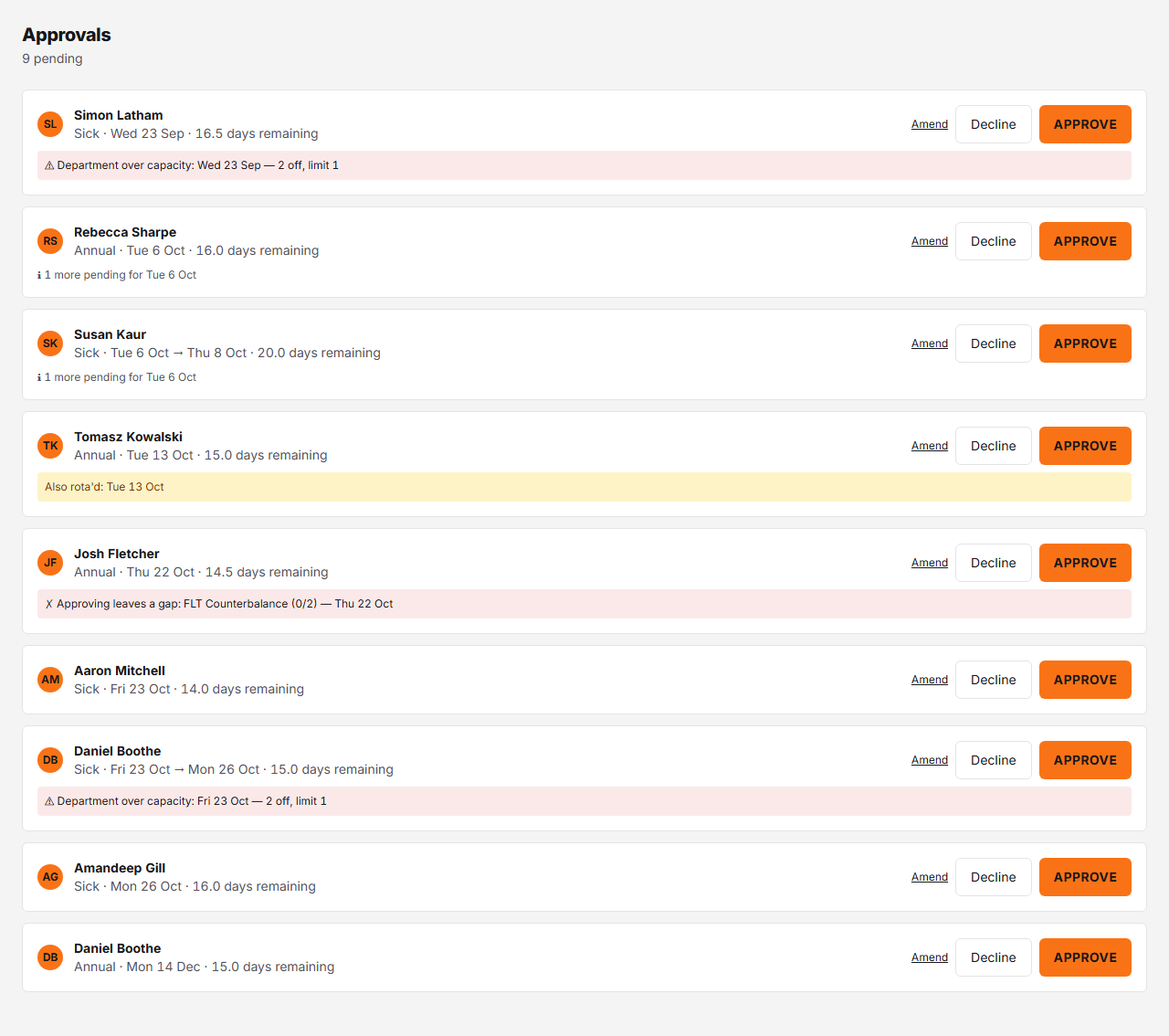
Controls
| # | Control | What it does | What it changes | Who |
|---|---|---|---|---|
| 1 | Pending count # | The header subtitle's live count of everything on this page waiting for a decision. | Adds leave requests, TOIL requests (where TOIL is switched on), and — only where your organisation has switched shift swaps on — open-shift claims and swaps, into one total. It is not just leave. For a manager, the leave requests counted are those that route to them or to someone they cover for, and the TOIL requests are those from people they are an approver for; open-shift claims and swaps are shown to every manager. | manager, admin |
| 2 | Request summary # | Who's asking, the leave type, the dates or times, and their remaining allowance for the leave year the request falls in, in one line. | Read-only. The remaining figure already accounts for this very request — a pending booking draws the allowance down exactly as a decided one does, so approving it here doesn't reduce the number any further. | manager, admin |
| 3 | Coverage warning # | Names the specific reason approving this request would cause a coverage problem, when there is one. | "✗ Approving leaves a gap" comes from a competence shortfall against a coverage rule set to block (violations; a department-scoped rule adds the department in brackets, e.g. "First Aider [Warehouse] (1/2)"); "⚠ Department over capacity" comes from more people being off than the department's limit allows (department_capacity). A request can show one line, both, or — when it doesn't breach anything — not this block at all. Both sums count approved leave only, never pending requests, which is why a card that breaches nothing can still carry a grey information line beneath it: "ℹ 1 more pending for Fri 4 Sep". On a card that does breach, that same line joins the breach lines inside this block. | manager, admin |
| 4 | Amend # | Opens this request in the booking form, pre-filled, so you can change dates or details instead of declining outright. | Navigates away to the booking form. Nothing here is saved until you save there, and the request stays pending until you do. | manager, admin |
| 5 | Decline # | Opens a confirmation before declining the request. | The reason is optional. Leave it blank and the requester isn't told why; type one and it's sent to them. There is no override gate on decline — confirming always declines immediately. | manager, admin |
| 6 | Approve # | Opens a confirmation before approving the request. | For a request with no coverage problem, confirming is all it takes. For one that breaches coverage, the same button opens "Approve despite the coverage gap?" instead, repeats the warning, and keeps Confirm override disabled until you type an override reason — approving over a warning leaves a record of why. | manager, admin |
Managers and admins land here to work through everything waiting on a decision — leave requests, TOIL requests, and, where your organisation has switched shift swaps on, open-shift claims and swaps too. This page documents the leave cards, which carry the most to explain; TOIL and claim cards are simpler variants of the same Decline/Approve pattern, without a coverage warning or an Amend link. The TOIL approval dialog has one extra field, Expires on (optional): leave it blank and the credit takes your organisation’s default TOIL expiry (Settings → Leave → TOIL), or enter the date you’ve agreed with the person.
Two different warnings, one warning block
The pink block under a card can print two different lines, and they mean different things:
- ”✗ Approving leaves a gap” — a competence shortfall. Someone qualified (a first-aider, a forklift-licensed driver) would not be on shift if this request goes through.
- ”⚠ Department over capacity” — a headcount problem. More people would be off at once than the department’s maximum off limit allows, regardless of who they are or what they’re qualified for.
The two are independent checks, so a request can show either line, both, or this block not at all. The screenshot above shows all three cases. Two cards carry ”⚠ Department over capacity”, each naming its own breach date — Simon Latham’s reads “Mon 24 Aug — 2 off, limit 1” and Daniel Boothe’s 21–24 Sep card reads “Mon 21 Sep — 2 off, limit 1”, because the line is built per date, not per card. Josh Fletcher’s 17 Sep card carries ”✗ Approving leaves a gap: FLT Counterbalance (0/2) — Thu 17 Sep” instead. The other six cards breach nothing, so none of them carries this block: four — Tomasz Kowalski’s, Aaron Mitchell’s, Amandeep Gill’s and Daniel Boothe’s second card, the Annual 10 Nov — carry nothing at all, while Rebecca Sharpe’s and Susan Kaur’s carry the grey pending line described next.
”ℹ N more pending” — and why it isn’t a warning
Breach and capacity sums count approved leave only. A pending request
has not taken anyone off the floor yet, so it never makes
would_breach true and never colours a card. That leaves an approver able to
grant three people the same Tuesday one after another, each decision looking
clean on its own.
The grey line beneath a card closes that gap without pretending a gap exists — Rebecca Sharpe’s and Susan Kaur’s cards in the screenshot above each carry one, because they have both asked for the same Friday:
ℹ 1 more pending for Fri 4 Sep
It counts other people in the requester’s own department with a pending booking on a date this request covers, per date, dropping any date with none; a request whose department-mates have asked for nothing shows no line at all. It is plain muted text, not the pink warning block — nothing is wrong yet, and colouring it like a breach would say otherwise. When the request does breach something, the same line moves inside the warning block, under the breach lines, because there it is part of one picture.
Approving over a warning is deliberate and recorded
When a request has no warning, Approve just opens a plain confirmation. When it does, the same button instead opens “Approve despite the coverage gap?” — it repeats whichever warning line(s) apply, and the confirm button (Confirm override) stays disabled until you type an override reason. There’s no way to click through a breach without leaving a reason behind.
Decline is the opposite: a reason is never required. The field is optional either way, and only reaches the requester if you actually type something.
Amend rather than decline
If a request is “yes, but not those exact dates,” Amend opens it in the booking form instead of forcing a decline-and-resubmit. It navigates you away to edit the request directly — nothing about the pending item changes until you save there.
The amber “Also rota’d” line
A third block can appear below a card, amber rather than pink and separate
from the coverage warning above: “Also rota’d: [dates]”. It shows when
the requester already has shifts — draft or published — on any date this
leave request covers (rota_impact). It’s informational only: approving the
leave request does not itself remove them from those shifts, so whoever
manages the rota still has to reassign or drop that cover separately.
It’s never pinned above because this organisation doesn’t have the rota
feature switched on — rota_impact comes back empty while that’s the case,
regardless of what’s pending. Once rota is on, the line renders exactly this
way whenever a requester’s dates overlap something they’re already
scheduled for.
Multi-level approval and delegation
Some things can appear on a card that this demo org’s default setup never triggers, because they depend on organisation configuration rather than anything about the request itself:
- “Level 2 of 3 · 1/2 approved” shows whenever the request’s nearest approval tier is a saved policy — a single-level policy prints “Level 1 of 1 · 0/1 approved” just as readily; with more than one level, it counts the levels off as they’re approved. The default ladder (team managers, then department managers, then admins) never produces this line, because a tier that uses its managers rather than a saved policy has no levels to count.
- “Climbed from [department]” shows when the request has come up from the requester’s own department to a department tier above it, because nobody in the requester’s own department could approve it.
- “On behalf of [name]” or “Escalated — [name] is on leave” shows only when delegation (the Approver cover feature) is switched on for your organisation and this particular request reached you through it rather than directly.
None of these is pinned above because the demo org doesn’t exercise them — but they are real, live behaviour once a multi-level policy, an empty department tier or delegation is in play.
What people assume, and what’s actually true
- An admin can approve their own request. Admin approval bypasses the routing checks every other approver goes through, and that bypass doesn’t look at who asked. If requester and approver need to be different people, that has to come from how your approval policy names approvers — the app itself won’t stop an admin approving their own leave.
- The same approver cannot approve the same request twice at the same level — a repeat approval does not count a second time.
- Declining does not require a reason, but the requester sees one if you give it.
- The remaining figure already includes this request: a pending booking draws the allowance down exactly as a decided one does, so approving it here doesn’t reduce the number any further.
- Coverage and capacity count approved leave only. A day nobody has been granted yet cannot breach anything, however many people have asked for it — which is exactly why the pending note below the card exists.