People
Every control on the People directory — invite, import, search, filters, selection, bulk actions, and the row menu behind Personal settings and Archive.
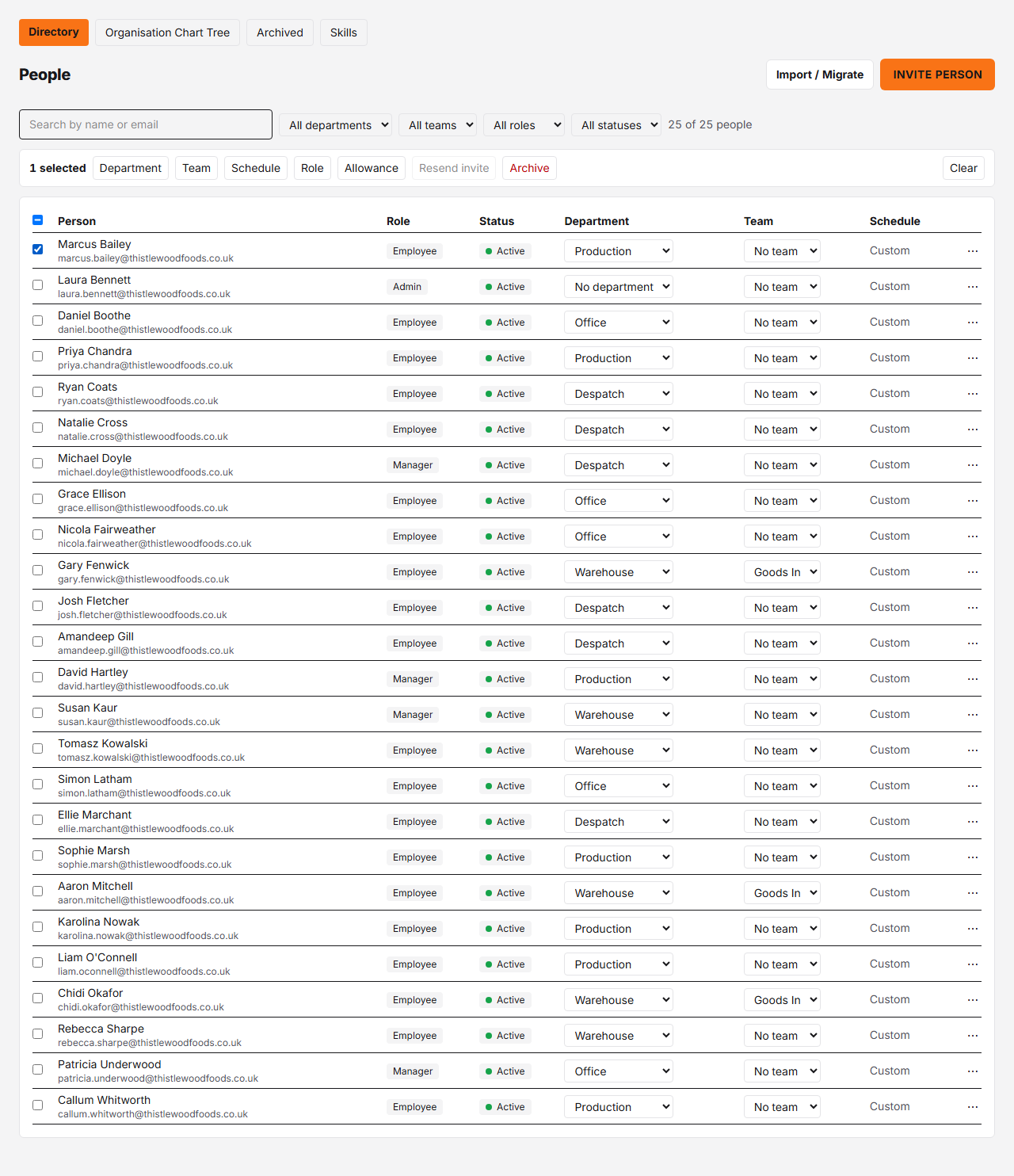
Controls
| # | Control | What it does | What it changes | Who |
|---|---|---|---|---|
| 1 | Invite person # | Opens a form to invite one person by email, with role, department, start date and an optional annual allowance. | If that email already matches someone archived in your own organisation, the form offers to reinstate and re-email them instead of sending a fresh invite. | admin |
| 2 | Import / Migrate # | Links out to the bulk import tool for bringing people over from another system (Timetastic, BrightHR, Breathe HR and others). | Nothing on this page changes until you actually run an import there — this is just the way in. | admin |
| 3 | Search people # | Client-side filter over the list below, matched against name and email as you type. | Only changes what's displayed here. It does not search department or role, and it never calls the API — reaching this page at all already requires manager or admin. | admin, manager |
| 4 | Filters # | Narrow the list by department, team, role and status. They combine with the search box, and the count on the right says how many people match. | Only what's displayed. Filtering never touches your selection — people you've ticked stay ticked while hidden, and the toolbar says how many are hidden. | admin, manager |
| 5 | Bulk actions # | Applies one change to everyone ticked: department, team, schedule template, role, annual allowance, resend invite, or archive. Each opens a confirmation naming the people affected. | Every person is updated separately, so anyone who can't be changed is skipped and named in the result — your own row for role and archive, people whose allowance unit differs or who accrue from hours (for the allowance action), people who have already accepted (for resend invite). A bulk department move never changes anyone's hours. The buttons sit below the filters and are greyed out until someone is ticked. Managers see Archive only. | admin, manager |
| 6 | Select all visible # | Ticks every row currently shown; tick it again to untick them. On a phone the same box sits at the left of the action bar. | Nothing until you pick a bulk action. Hidden (filtered-out) rows are left as they are. | admin, manager |
| 7 | Select person # | Ticks one person for a bulk action. Tick as many as you like, in any order, across filters. | Nothing on its own — the bulk-action buttons below the filters become available once anyone is ticked. | admin, manager |
| 8 | Name # | Opens this person's Personal settings — the same panel as the row menu's Personal settings item. | Nothing by itself; the panel's own controls save. | admin |
| 9 | Role # | Shows this person's role — Employee, Manager or Admin. | Read-only here. There is no control on this table that changes it. | admin, manager |
| 10 | Status # | Shows Active, or Invited until they accept their invite email. | Read-only here. It flips to Active by itself once the person accepts — nothing on this page sets it directly. | admin, manager |
| 11 | Department # | Moves this person to a different department, or to no department. | Never silently changes their working hours. If the destination has a default hours template that differs from this person's own, a prompt offers to apply it — declining keeps their current hours. | admin |
| 12 | Team # | Moves this person to a different home team, or to none. | Their home team decides which team's approval policy applies to their requests and how reports group them. Membership of other teams is unchanged — that lives in Settings → Teams. | admin |
| 13 | Row actions (⋯) # | Opens the per-person menu that holds everything else you can do with this record. | Managers see Year calendar and Bookings only. Admins also see Personal settings, Schedule, then Kiosk PIN (clock feature only), External reference, and Pay rates (labour-cost feature only), and Archive last — absent on their own row. | admin, manager |
This is the roster every admin and manager lands on: one compact row per person. Editing happens in two places — a person’s Personal settings panel (click their name, or pick it from the row’s ⋯ menu), and the bulk actions toolbar for changing several people at once.
Personal settings
Click a name and the panel opens over the list: start date, annual allowance, carry-over cap, allowance unit, irregular hours, role, home team, department and schedule template all live in Personal settings. The ⋯ menu reaches the same panel, alongside Schedule, Bookings, Year calendar, External reference (the id another system, such as payroll, uses for the person) and Archive, plus Kiosk PIN and Pay rates when those features are switched on.
Schedule shows the working-hours template a person follows, or Custom when their days were set by hand; change it from Personal settings, the Schedule item in the row menu, or the bulk Schedule action. A Custom pattern can repeat over up to four weeks — the Schedule item has Repeats every for that (and, once it repeats over more than one week, Week 1 starts on), lists the days in the order they fall in the week, and gives the dates the week on screen next runs; see Working-hours templates. A template is always one week, so applying one by any of those three routes, or by accepting the Apply department hours? prompt when someone moves department, replaces a repeating pattern with that single week.
Selecting people and bulk actions
Tick the box at the left of any row — scroll and tick as many as you need — or use the header box to tick everyone currently shown. The action bar below the filters says how many are selected; if a filter is hiding some of them it says so, because a bulk action applies to everyone ticked, hidden or not. Each action opens a confirmation that names the people it will touch. Afterwards a message reports how many were updated and names anyone skipped, who stay ticked so you can see who was left out. Managers see Archive only; the other actions are admin-only, like the single-person controls they match.
Moving someone between departments
Changing the Department select reassigns the person immediately, but it does not touch their working hours on its own. If the destination department has a default hours template and this person is currently on a different one, a dialog asks whether to apply it. Declining — Keep current hours — leaves their existing schedule exactly as it was; nothing is applied silently either way.
Archiving
Archive, at the bottom of the row menu, opens a confirmation that asks for a last day of employment. That date pro-rates their allowance for the leave year they’re leaving in, and the dialog shows the resulting holiday balance on that day as soon as the date is in the box: what they’re entitled to, what they’ve taken up to that day, and whether they’re owed days (pay them) or owe days back (claw them back). Bookings after the last day are ignored, and the dialog says how many there are. Once archived, the person is signed out and disappears from this directory — they’re not deleted, and can be reinstated from the Archived tab, which lists the same balance for every leaver and re-sends their sign-in email on reinstating.
Re-sending an invite
Everyone in the screenshot above has already accepted their invite, so there is no row to pin for Invite pending — Resend. It appears next to the row menu for anyone whose status is still Invited. It doesn’t change their role, department or anything else about the record — but it isn’t a plain re-send of the same email: it issues a fresh invite link and expires every still-live invite already sent to that address, so an older invite email sitting in their inbox stops working once you click it.
What you can’t do here
- Role is not edited on the row — use Personal settings, or the bulk Role action.
- You cannot archive yourself — your own row never shows Archive, and a bulk archive skips you.
- Search covers name and email; the filters cover department, team, role and status. Nothing here searches allowances or schedules.
- Kiosk PIN and Pay rates only appear in the row menu once the clock and labour-cost features are switched on for your organisation.
- Invite person and Import / Migrate are admin-only, and are switched off in the practice company.
- Membership of teams other than the home team is managed in Settings → Teams.